What is DQM?
Crownpeak’s Digital Quality Management tool provides weekly scans of a client’s website to check for the following:
- Web accessibility (WCAG 2.1 & Section 508)
- Search engine optimization (SEO)
- Brand compliance
- Editorial standards
- Localization requirements
- Privacy and regulatory compliance
- UX/UI standards
- Multi-lingual spell check and broken links
- Custom checkpoints
Many clients have a tendency to think all issues flagged by DQM are ADA issues – this is not the case, and the distinction between categories of issues are made fairly clear in the DQM portal.
DQM Purchases
If you think a client would be interested in purchasing DQM, you can share this DQM Features document with them. If they would like to move forward, please send an email to the Sales Lead team inbox letting them know to contact the client about adding DQM as a product.
Your Sales Lead email should include the following information:
- FI Name
- Folder Number (if PWEB)
- Site URL
- Contact Name
- Contact Email
- Contact Phone
When a client purchases DQM - or ads a rep who needs access to DQM, you will need to make user accounts for the appropriate individuals. To do this, please refer to the steps outlined in the DQM Client User Setup below.
If the client purchases DQM Premium, we need to add the logo and Accessibility Statement template to each of these sites. You will need the FI to determine what verbiage they want and if they want to include a feedback form on the template or not. Here are some live examples:
Once the details of the Accessibility Statement template are determined, open a jSource case with the support developers to set it up. Once DQM and if applicable, the premium portion is all setup, finally you will then send out the launch notice form for DQM.
If you or a client would like a tutorial on the features and use of the DQM portal, please see these helpful training videos. If you or the client are experiencing an issue with the functions or tools of DQM, please reach out to Niki Merriwether and she will contact Crownpeak.
DQM Issue Summaries
Any client who has purchased Digital Quality Management (DQM) can download an issue report at any time by accessing the Website Overview page in DQM and scrolling down to the Export Data section and choosing ‘Issue Summary (xls)’.
The issue summary consists of a spreadsheet with a tab for every issue scanned for, and will list any issues found. The issue descriptions are more elaborate on the DQM site than in the Summary, so it may be best to look them up there.
If the client is interested in addressing any of the issues listed in a DQM Issue Summary, please refer to the Remediation Process below.
Remediation Process
If a client has decided to address any issues in a DQM Issue Summary, SortSite Scan, Gladiator Compliance Review, or another third-party ADA compliance – please refer to the steps below:
Before requesting a quote from dev, encourage clients to accept one of these generic quotes:
- 30-40 hours for DQM/SortSite/Gladiator
- 70-80 hours for Third-Party.
Please cite the following when encouraging a client to go with the appropriate generic quote:
- We will only charge for the actual hours used to complete the request, up to the high-end of the quote. A 30-40 hour quote needing 15 hours of work will be charged at 15 hours. If it needs 60 hours of work, they will not be charged for more than 40 hours.
- A custom quote will take 2-3 hours to generate, which will add to the overall charge for the work.
Please set client expectations for turn-around times as follows:
- ADA Quote: 5-7 business days. These are handled like standard work orders, so be sure to add the requested due date to the CWR tab.
- ADA Work: A timeline will not be given Immediately. Inform the client that their case is in the development queue and a projected completion date will be provided after the request has been assessed – this may take a few days. Laura Drury will be keeping an eye out for these cases and will work to get a developer assigned and find out when that developer will likely have work for review on UAT.
- Once a projected completion date is available, please inform the client.
AutoFix
If the client purchases AutoFix (offered as of 03/2022), do NOT add the DQM accessibility icon, but DO add the accessibility-feedback form page.
Additional Notes
When creating a case for ADA remediation work, please send it to the appropriate PWEB or Banno dev que, and use the following labels: “ADA Quote”, “ADA Work”, “ADA Quote Third-Party”, “ADA Work Third-Party”
Once an ADA case is in the development que, please add it to the CWA Projects spreadsheet.
In some cases, color changes may need to go to the design team. For a generic quote case, the developer will complete all the work they can on UAT by the projected due date. The developer will outline the items that could not be done and why. This will include any color changes that need to go to design. Please explain this to the client, and send the case on to Valerie Merchant in the design queue to complete the necessary design work. Once the design work is complete, send the case back to the developer to implement the color changes as directed.
For a custom quote case, the developer will be sure to list any color issues that need to be addressed by the design team upfront. Please send the case to Valerie Merchant in the design queue for a quote. Once the client agrees to both the design and dev quotes, send the case to design. Once any design work is complete, send the case back to the development queue and the ADA Work process can resume as usual.
Client-side Remediation
There are some common issues that are the client’s responsibility to resolve either because they are easily addressed within the CMS or because we can or will not interfere with them:
- Changes to content formatting/styling within content areas
- Changes to uploaded documents (usually PDFs and images)
- Changes to 3rd party code (usually)
If a client has questions about how to resolve these items from their issue report that do not require development work, you may want to reference these resources:
If a client would like to address an issue with 3rd party code, please request that they contact the vendor and copy you on the correspondence. The exceptions to this are the 3rd party vendors that we already have a line of communication with. In those instances, please contact Krishna Ghamandi with the issue details and she can help get a message to the vendor.
DQM Client User Setup
Once logged in to Crownpeak, go to Admin > Users.
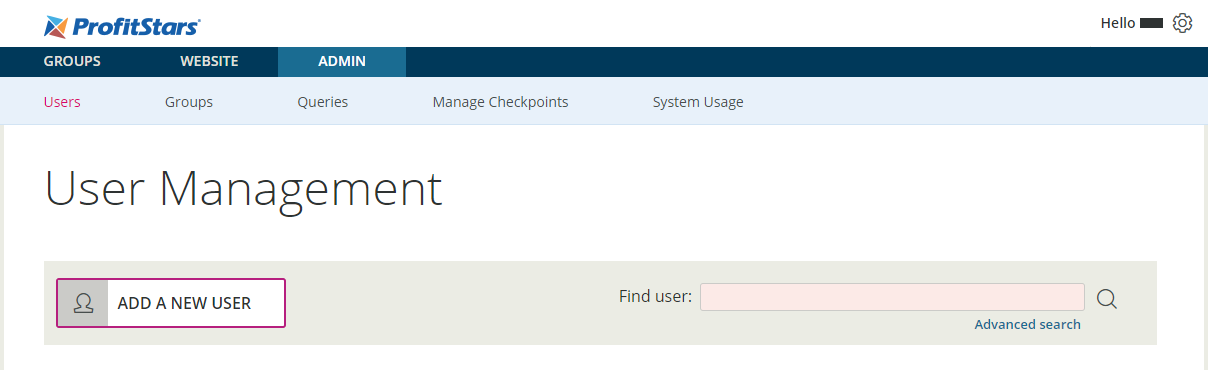
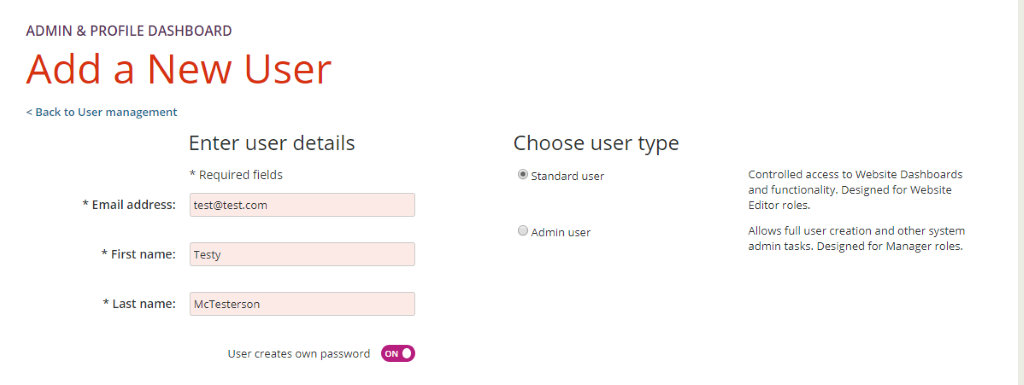
Click the “Add A New User” button. You will need email address, first name and last name. You will choose Standard User under the User Type section.
In the Standard user permissions section, you will UNCHECK “See the Analytics Dashboard” option and CHECK only the “Add words to dictionary” option.

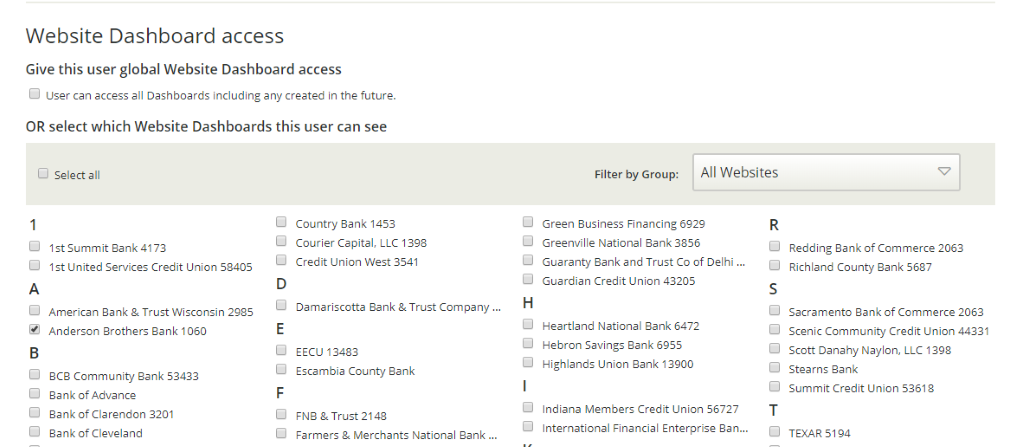
In the Website Dashboard access section, choose the appropriate dashboard for the client.
In the “Manage weekly status update emails” section, click CHANGE and then toggle the button to ON so they will get a weekly status email.
Click “Add User” and an email will be sent to the new user to finish the log-in process.