Opening a New Hire Case in JHA Service Center
After a prospective hire accepts a verbal offer, the hiring manager will need to enter a Service Desk case for that new hire. As this can be a bit tricky and requires some specific knowledge, we’ve prepared a full rundown of what you’ll need to fill out and how.
Where to Go
The link for JHA Service Center can be found in the upper right of JHAToday, or directly here.
If you get an error when opening the page, open a separate incognito window in your browser and paste the link in.
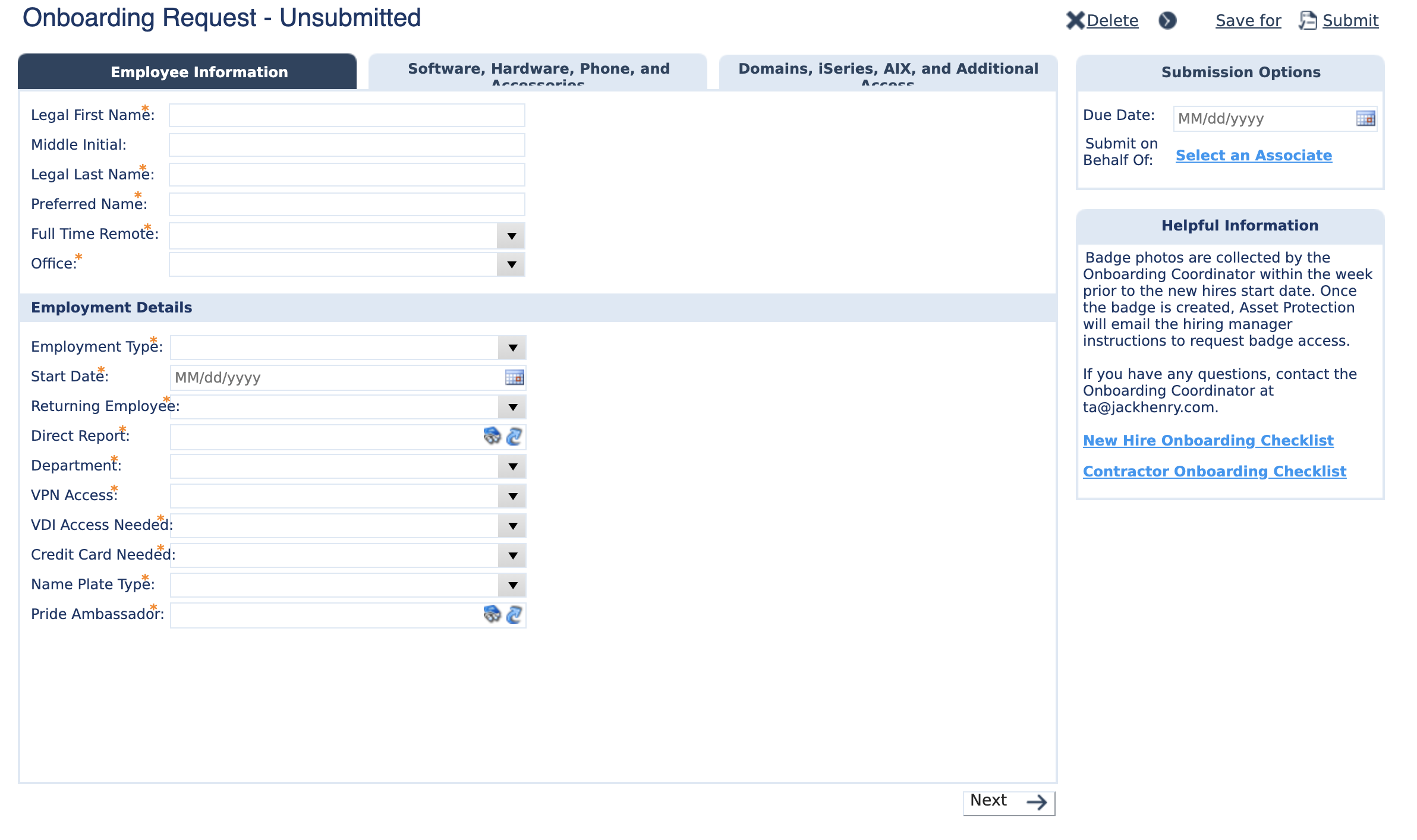
From here, you’ll select Business at the bottom of the page, then the Employee Management option, then New Hire. This will take you to the first page of the Onboarding Request form:
Filling It All Out
From here, you have three pages worth of form to fill out, so buckle up.
Submission Options
First and foremost, set the Due Date to the Monday before the new hire’s actual start date.
Employee Information
The basic employee information is simple, but be sure you have the hire’s full legal first and last name, their middle initial, as well as their preferred name.
You will also need to select if they are Full Time Remote or select their office location. If they are remote, the office drop down will disappear after selecting that option and you will be prompted to enter their address, city, state, and postal code. If they are in an office, you will be prompted to enter their seat location.
Employment Details
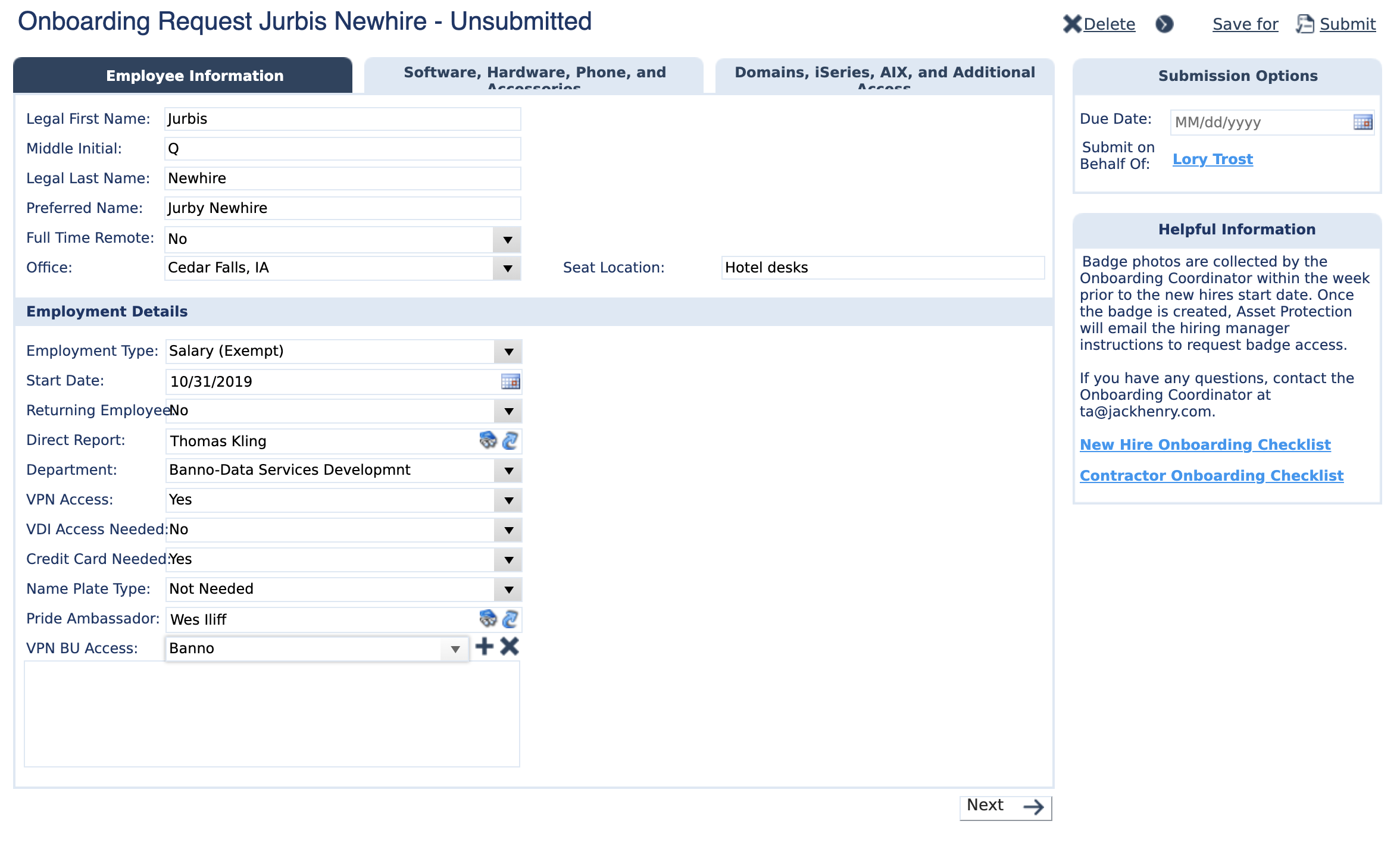
Next, you’ll fill out more of the specifics about the position. Most (but not all) new hires will have an Employment Type of Salary (Exempt). Start Date should be simple enough, and Returning Employee simply indicates if they have worked for JHA (not just the Banno group) before. If you are not their Direct Report, then someone has tricked you into doing their work for them. Stop immediately and track down the villain. Also note that whoever is selected as Direct Report is the person that will receive the new hire’s @jhacorp.com credentials.
Department is the department name, not number. If you are unsure of the correct department, the easiest path is to find the department of someone in the same position on the directory on JHA Today. By default, the Department will auto-complete to your own.
New associates will need VPN but not VDI. Credit Card will be needed by any salaried employees, as it is used to cover travel, conferences, etc. Name Plate Type should be Not Needed, unless you’re feeling spicy and want to get them a little treat.
You’ll also need to select a Pride Ambassador, which should be someone the new hire does not have in their direct reporting structure who can help them get up to speed and answer questions in their first week. If you’re not sure who to select, Wes Iliff works as a default. I hear that dude’s awesome.
After enabling VPN access, a field labelled VPN BU Access will appear. Select Banno from this drop down, then select the + button to add it.
Once you’re all done, your form should look something like this:
Go ahead and hit that Next button.
Software, Hardware, Phone, and Accessories
Leave the Software Install field blank. Most of our tools are already in place, and the Digital Macs are managed separately from Corp.
For Hardware Requested, most hires will need a Developer MacBook Pro (the Digital Ground Control team will take care of building and shipping the Mac hardare based on the Jira New Hire ticket). Mouse and Keyboard have several options, and hopefully you’ve gathered the selections for your new hire before starting. Our default is a Magic Mouse and Magic Keyboard, but any of the options are available. Heaphones/Headset and Carrying Bag are optional and up to what the hire would like.
Monitors are not a selectable option, so if your employee will need one you’ll need to come back and add that as a note to the case after you’ve submitted it (see steps below).
Important! If your new hire is remote, you will need to come back and add the following note: Please send all hardware to the employee's address. (see steps below).
Phone
If your new hire does need a mobile phone to work, fill in the information and start with the lowest GB plan. Then kindly send a note to Lory Trost about the cost of the phone and the monthly fee so she can add it to our forecast. If they just need a device for testing without service, chat with Lory about those needs separately.
Got all those filled out? Just gotta hit that Next button one more time.
Domains, iSeries, AIX, and Additional Access
This last section will be left blank for most people. However, if your new hire will be on the TechOps or Infrastructure team, under Requested Domain select jkhy.com and click the + to add it. In the Business Justification field put For datacenter infrastructure management access.
Once this is done, click Submit.
Updating an Open Request
To update or change anything, log on to Service Center and select My Open Incidents from the top menu. Select the case you wish to update. You can change some fields diectly from here. If you need to change a non-updatable field, or simply need to add a comment for something like hardware shipping, then click Add a Comment, enter what you need to, then click Okay.