Basic Info
No matter what your role is at Banno, you’ll likely need to find information about an institution or a user. Depending on what details you’re looking for, Banno has a variety of tools you may need to use, including Data Services Reporting, the Enterprise platform (including People), or Google documents/spreadsheets.
Banno Institutions
- Institution_id (Banno’s UUID for the FI)
- DS Reporting - Query for Institutions
- Operational details about an institution
- Does the institution have Mobile only? Online also?
- Are they live? Testing?
- Do they have Marketing?
- Who is the institution’s implementation coordinator?
- Implementation status of an institution
- Mobile Status sheet tracks the institution’s install status of Banno Mobile
- Core tab
- Institutions still in implementation
- Launched-Core tab
- Institutions live with Mobile
- Non-Core tab
- Agg institutions still in implementation
- Launched-NonCore tab
- Agg institutions live with Mobile
- Terminated-Core tab
- Core institutions who terminated
- Terminated-NonCore tab
- Agg institutions who terminated
- Core tab
- Online Status sheet tracks the institution’s install status of Banno Online
- Pre-launch tab
- Institutions still in implementation
- Launched tab
- Institutions live with Online
- Terminated tab
- Institutions who terminated
- Pre-launch tab
- Marketing Implementation Status sheet tracks the install status of institutions who purchase the paid version of Marketing
- Content tab
- Institutions awaiting or in the Marketing implementation for their website
- Live Content tab
- Institutions who have taken the Marketing functionality live for their website
- Apps tab
- Institutions awaiting or in the Marketing implementation for the transactional side (Banno Mobile or Banno Online, known as Banno Apps)
- Live Apps Tab
- Institutions who have taken the Marketing functionality live for the transactional side (Banno Mobile or Banno Online, known as Banno Apps)
- Terminated Tab
- Institutions who terminated
- Content tab
- Mobile Status sheet tracks the institution’s install status of Banno Mobile
- Which core is the FI on?
- Mobile/Online status sheets
- core_provider in institution_aggregation (banno_all)
- Note: If the core_provider is configured incorrectly it can cause issues.
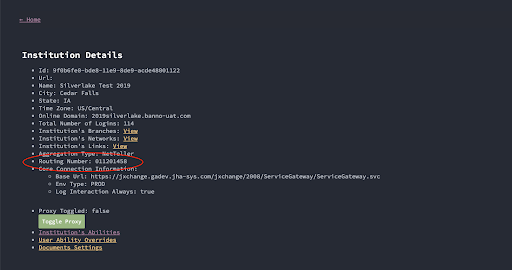
- Routing number (for banks)
- DS Reporting > Institution Details
- Occasionally this is blank and a table will need to be queried instead.
- Whether all logging is enabled
- DS Reporting > Institution Details
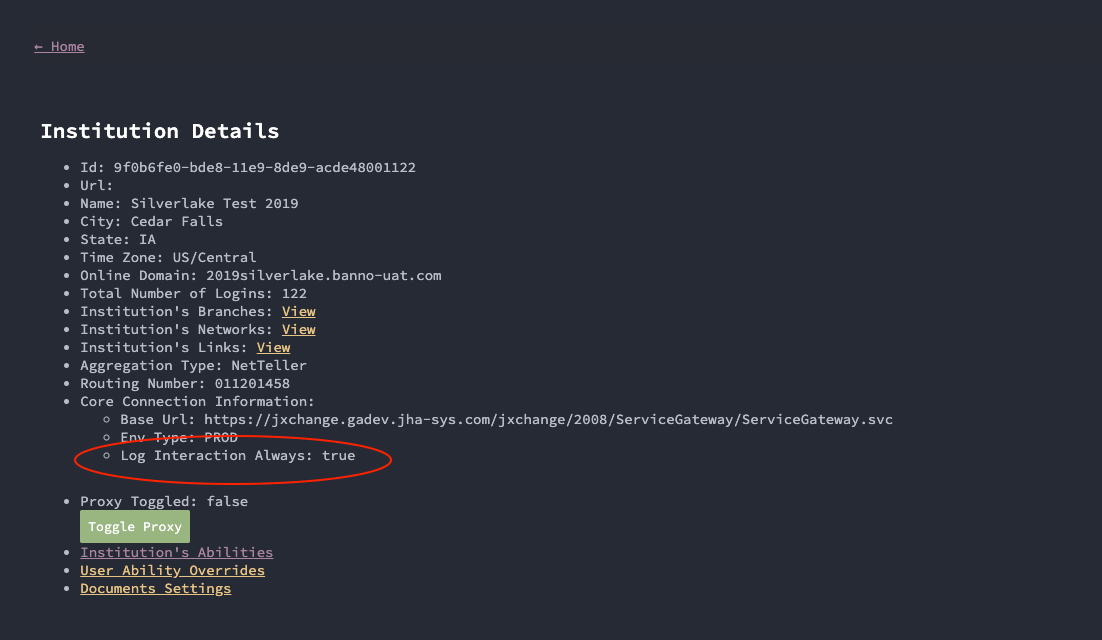
- Example templates of how to enable logging for a credit union and bank
- DS Reporting > Institution Details
- Whether all logging is enabled
- Abilities
- People > Config
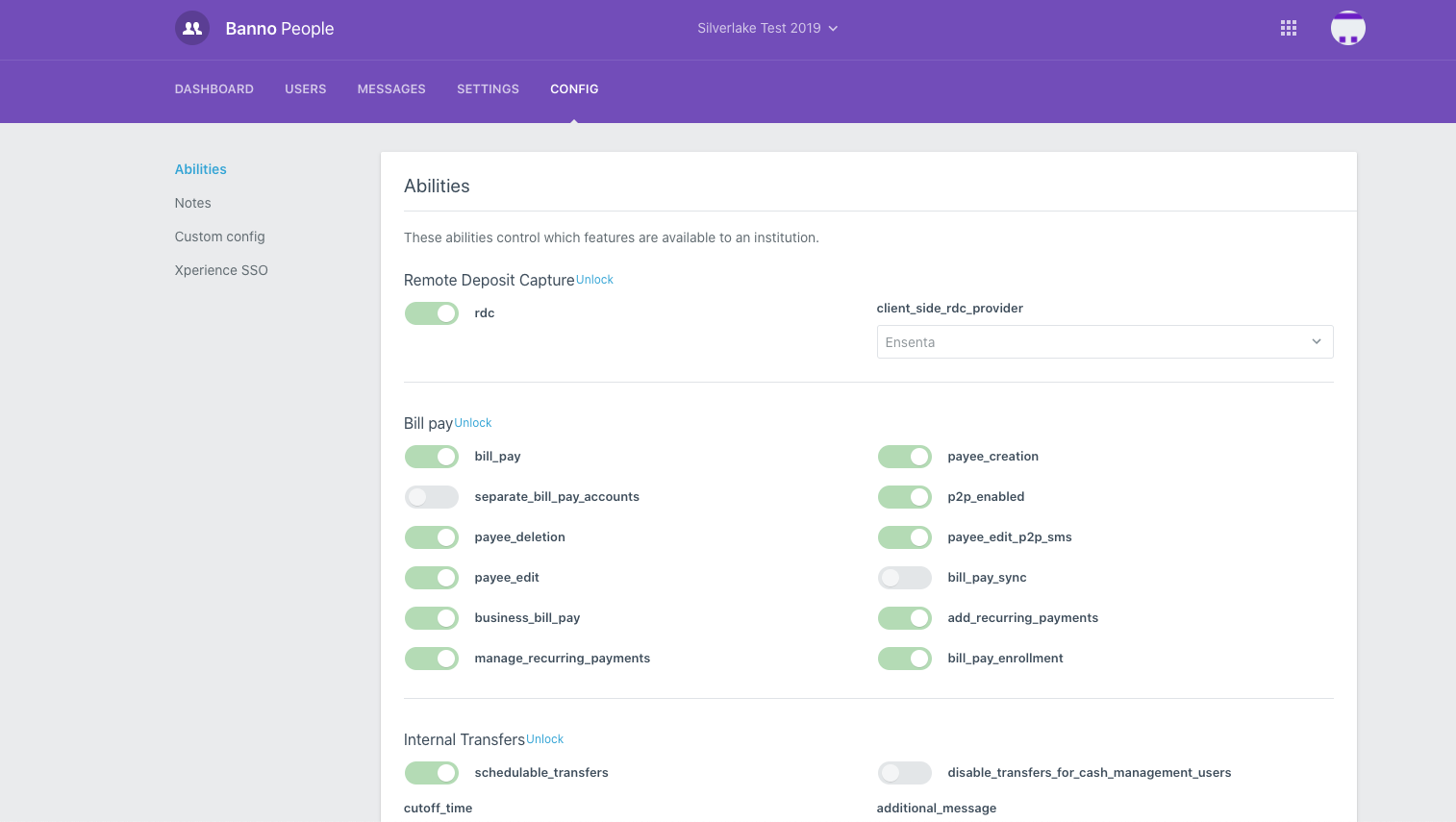
- DS Reporting > Institution Details > Institution Abilities
- People > Config
- NT FI/bank number
- Source of truth - tables in postgres-jabberwocky (BSL configs)
- If you pull up a user from the FI in DS Reporting and click on their login ID, it will show you the NTID. The NT FI number is the first 4 digits. The only caveat here is that a couple of FI’s have parent/child numbers that are different.
Banno Users
- user_id (Banno’s UUID for the user)
- People > User Overview > URL
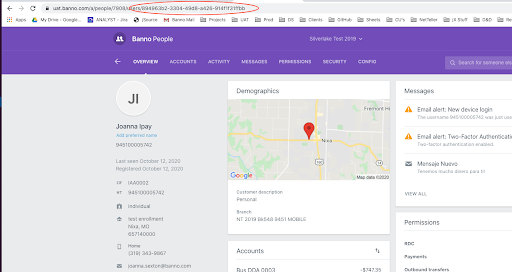
- DS Reporting > User Details
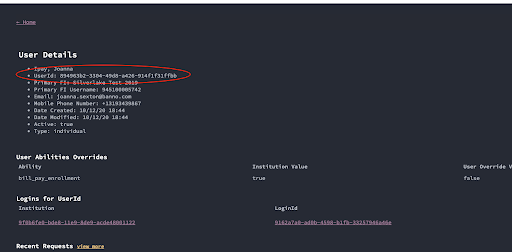
- People > User Overview > URL
- NTID (for all core bank customers, or NT CU customers as long as we successfully get NTID value)
- DS Reporting > User Details > Login ID > Login Details
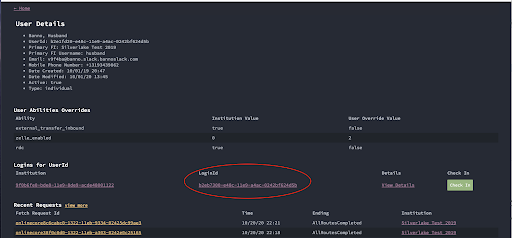
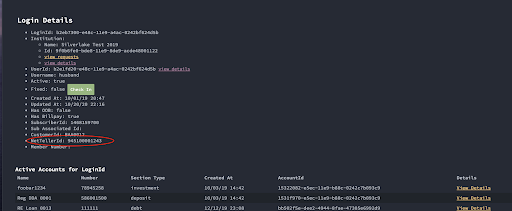
- People > User Overview
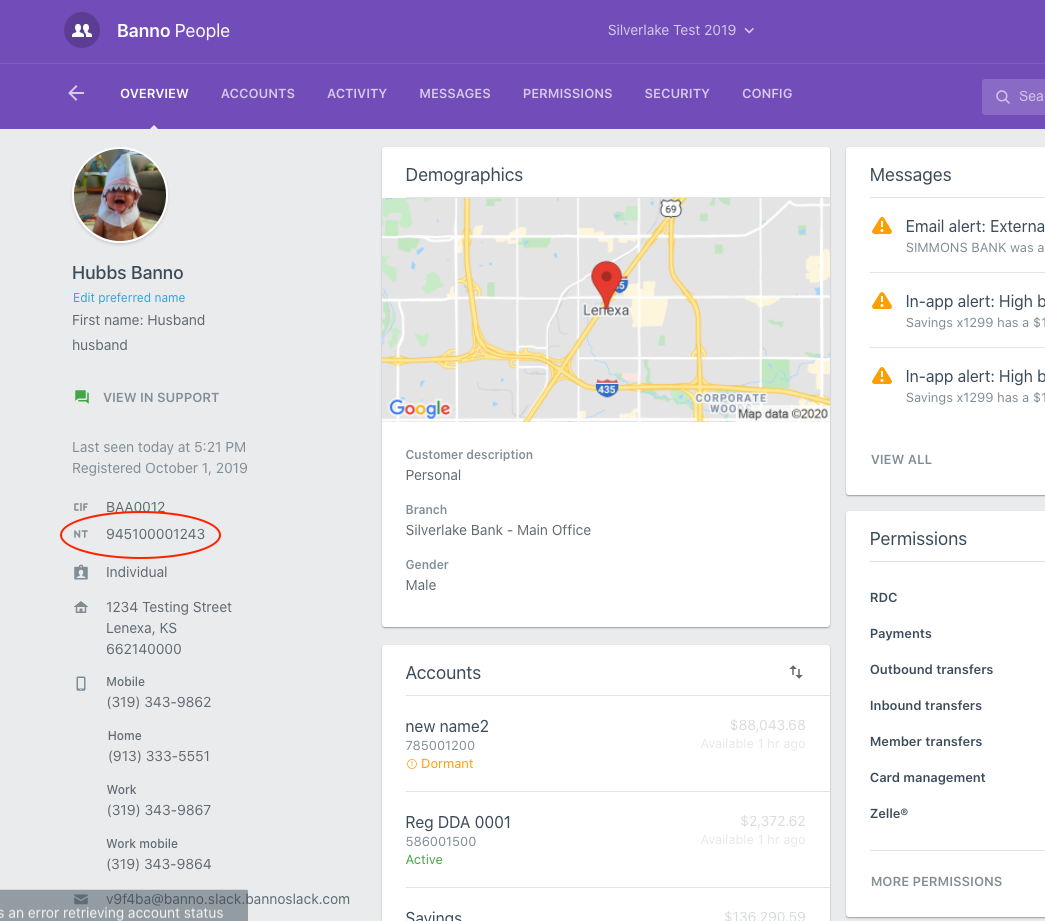
- DS Reporting > User Details > Login ID > Login Details
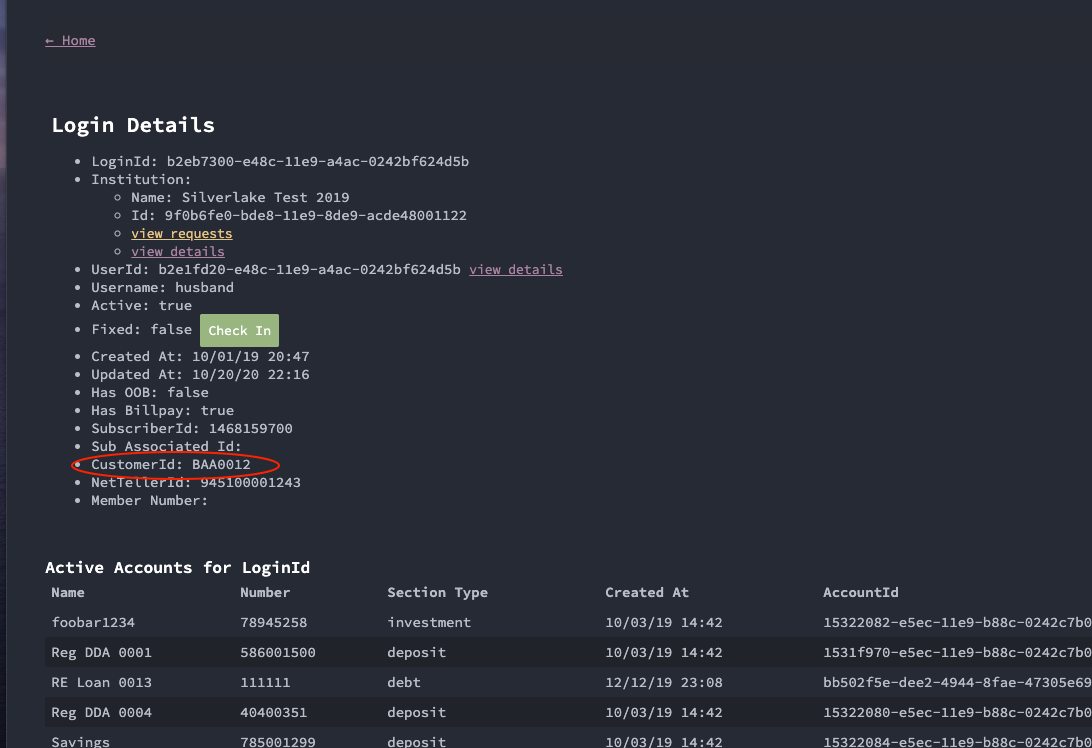
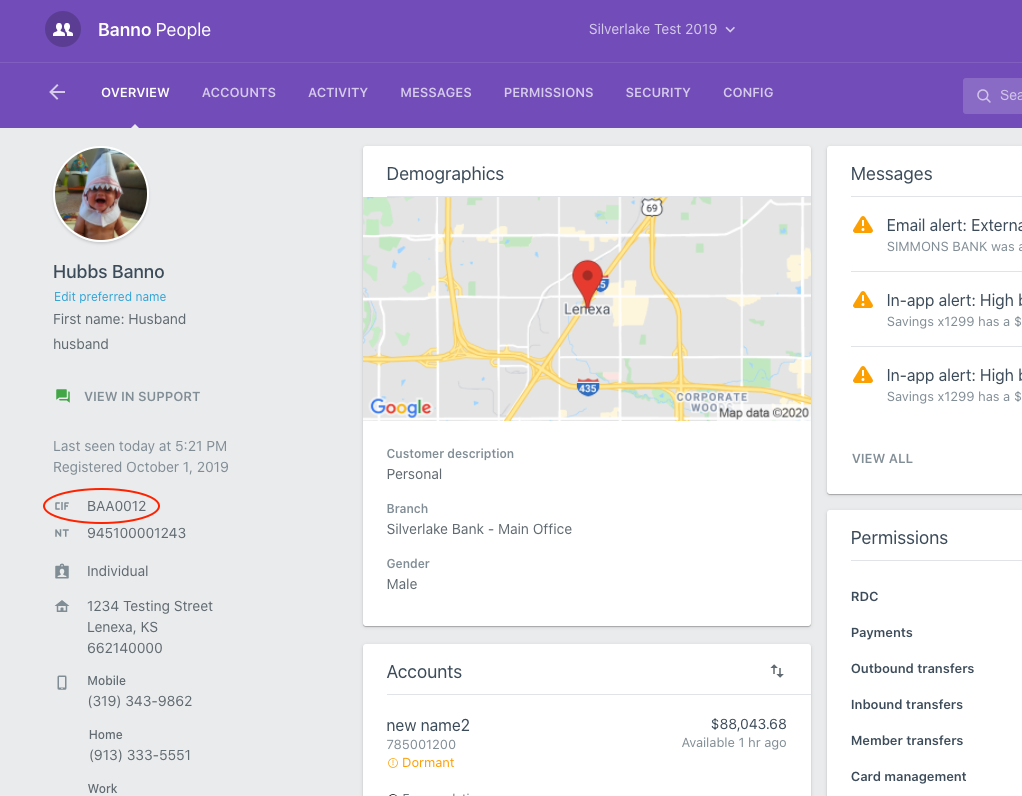
- CIF
- DS Reporting > User Details > Login ID > Login Details
- People > User Overview
- DS Reporting > User Details > Login ID > Login Details
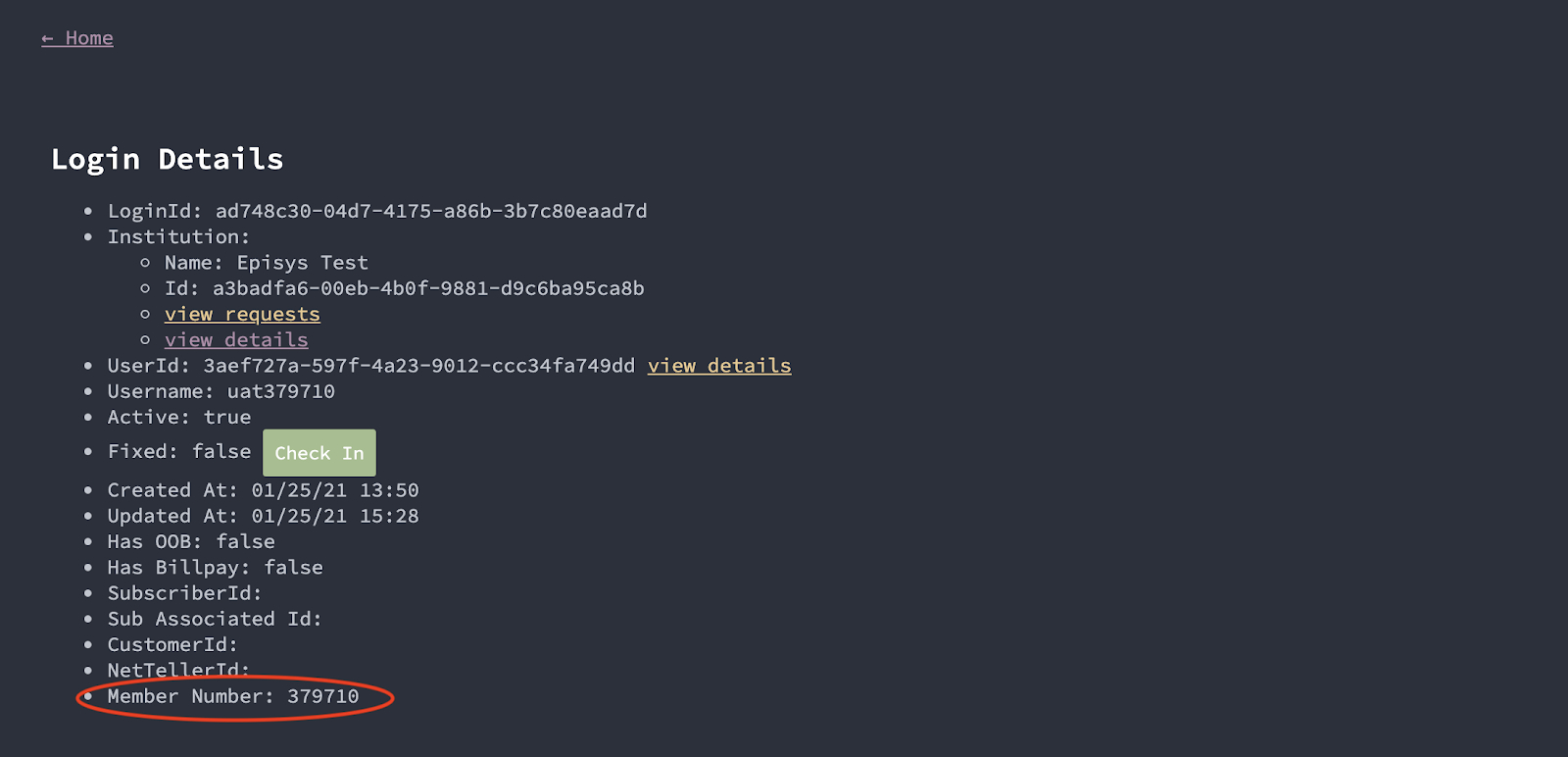
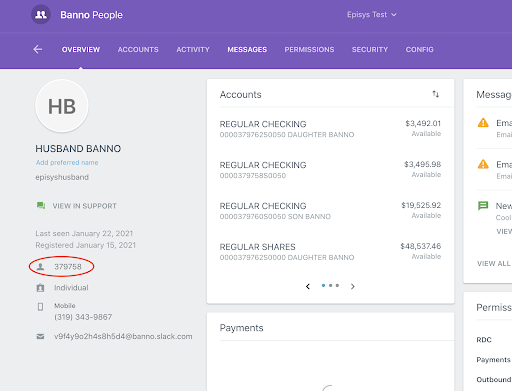
- Member number
- DS Reporting > User Details > Login ID > Login Details
- People > User Overview
- DS Reporting > User Details > Login ID > Login Details
- iPay subscriber ID
- DS Reporting > User Details > Login ID > Login Details
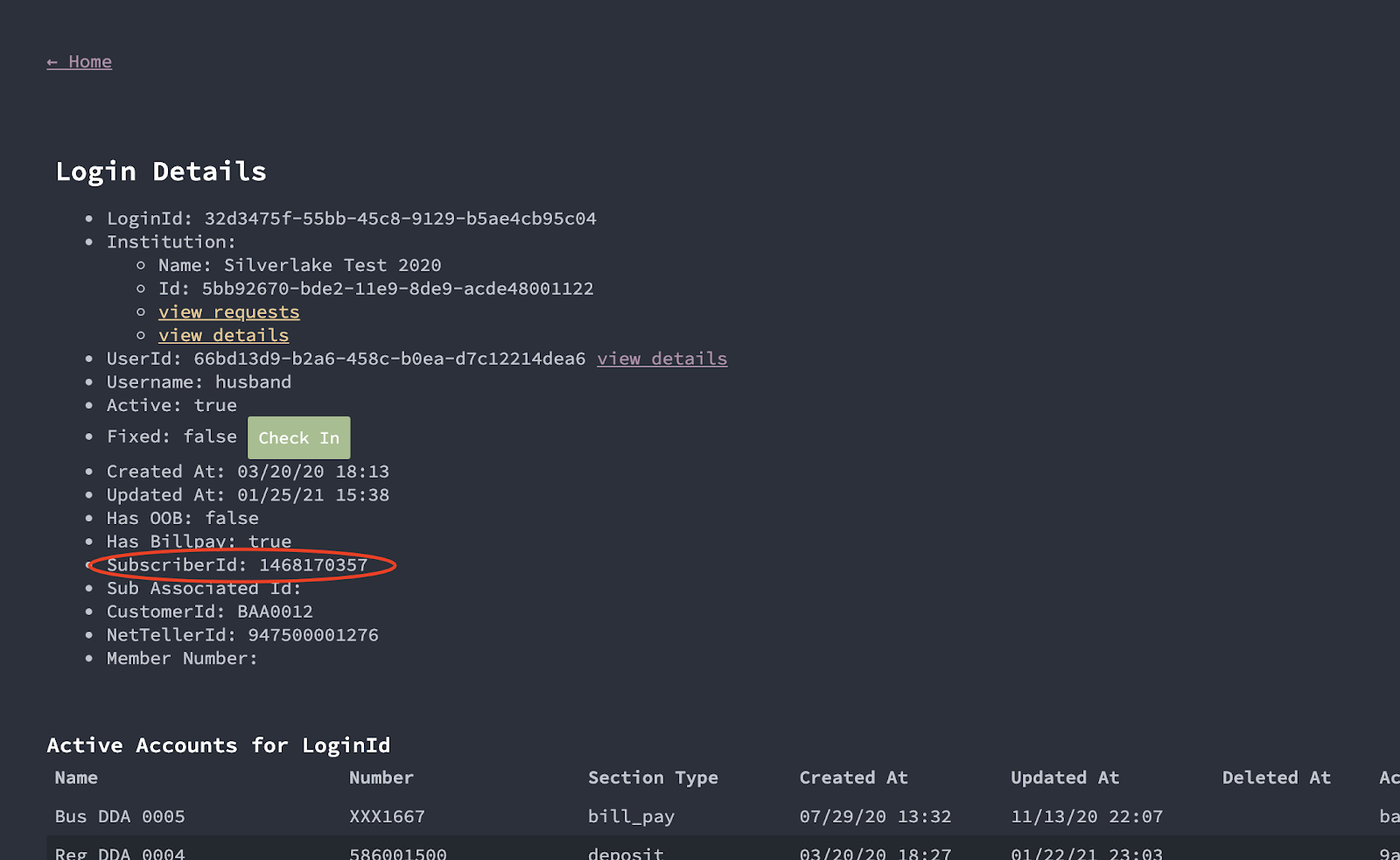
- DS Reporting > User Details > Login ID > Login Details
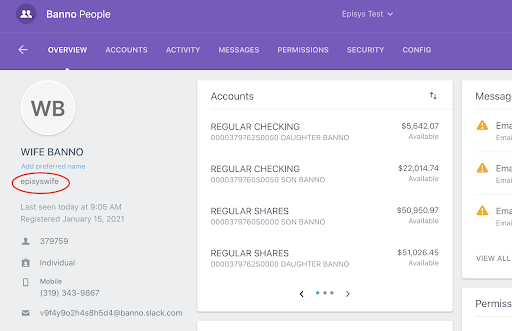
- Username/Alias
- The value the user enters as their username to login to Banno. For core bank Cash Management users this is also called their “SSO ID” or “SSO username”.
- DS Reporting > User Details > Login ID > Login Details
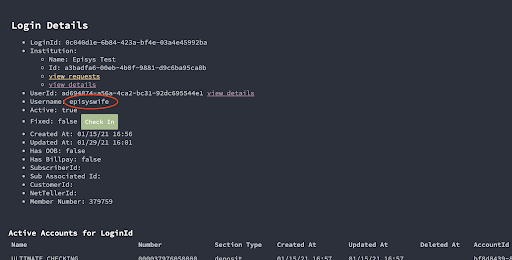
- People > User Overview
- Cash Manager User ID
- This is a separate value from the username or SSO ID. It is a static value per Cash Management and doesn’t change like the username can.
- Requires a database query. postgres1>banno_all>core_login_details
- Account number/Account name
- DS Reporting > User Details > Login ID > Login Details
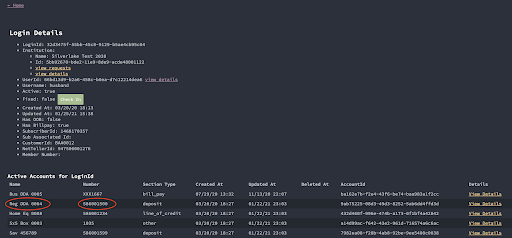
- People > Accounts
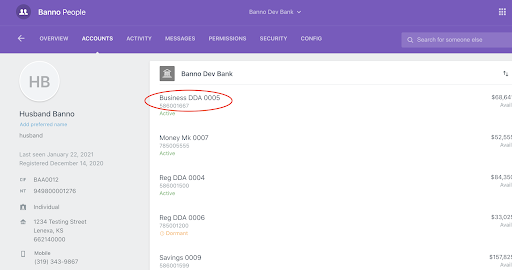
- DS Reporting > User Details > Login ID > Login Details
- User Abilities
- DS Reporting > User Details > User Abilities Overrides
- This is not the full current setting of abilities for the user but will list any abilities for the user_id that have been modified from what the institution has set.
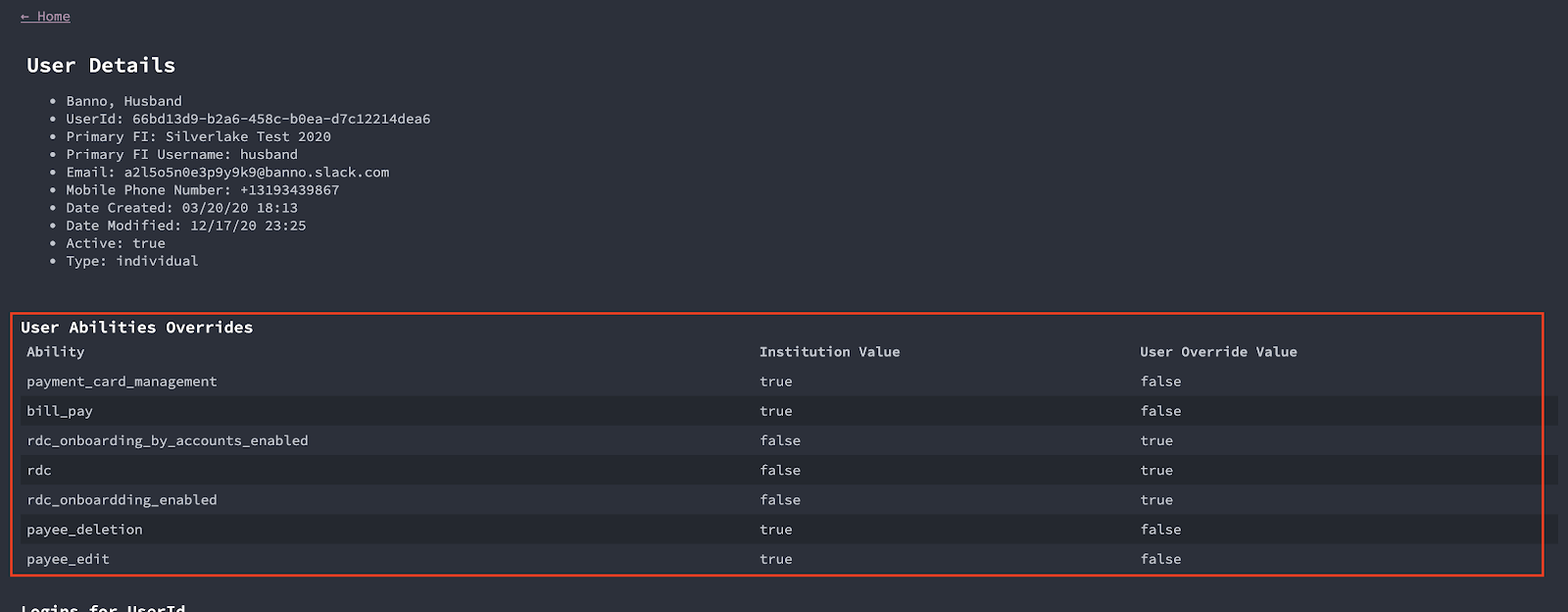
- This is not the full current setting of abilities for the user but will list any abilities for the user_id that have been modified from what the institution has set.
- DS Reporting > User Details > User Abilities Overrides
- People > User > Config
- This is not the full current setting of abilities for the user but will default to any abilities for the user_id that have been modified from what the institution has set. To show all abilities select Display all possible overrides from the drop down.
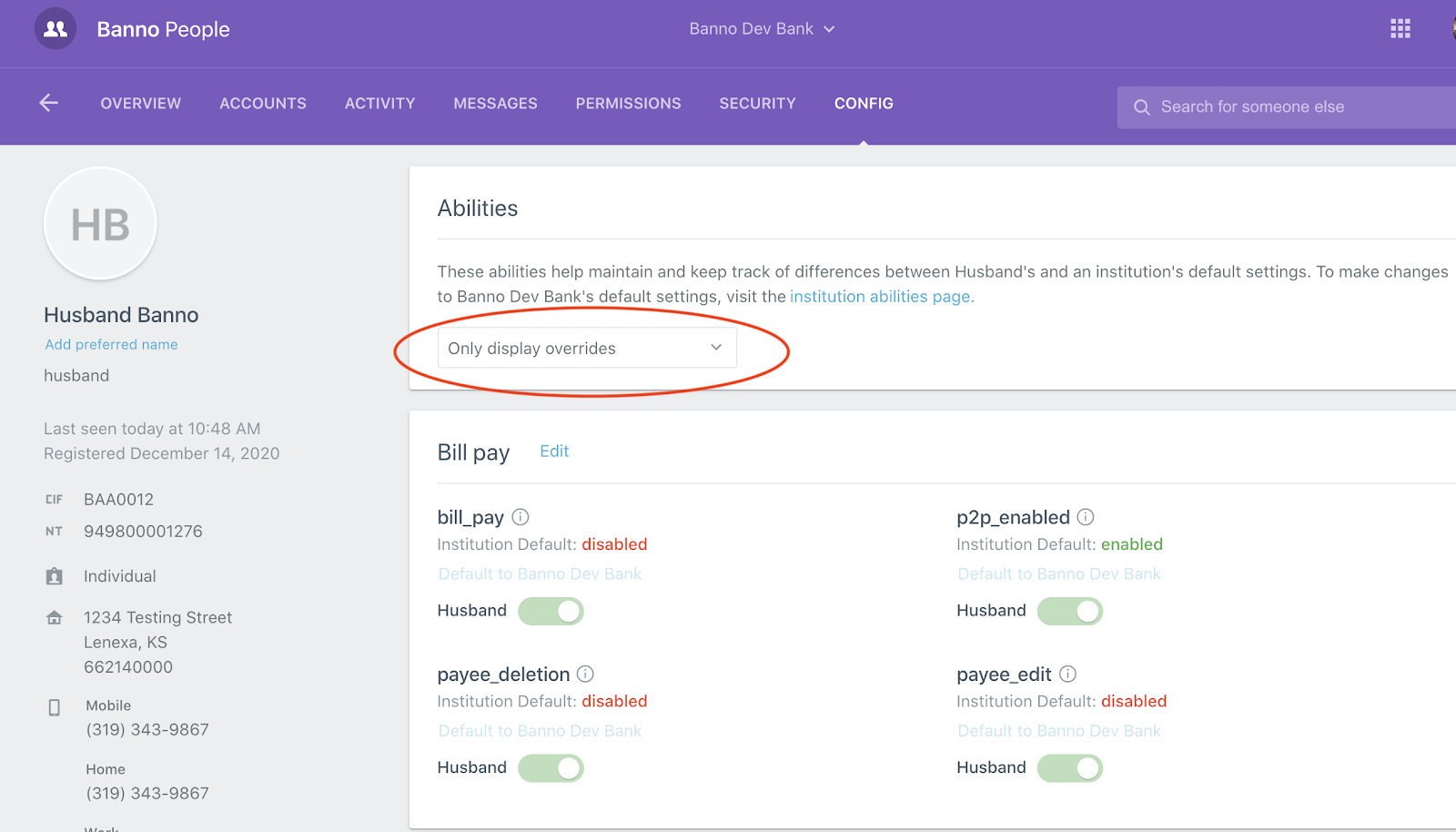
- This is not the full current setting of abilities for the user but will default to any abilities for the user_id that have been modified from what the institution has set. To show all abilities select Display all possible overrides from the drop down.