Supported Browsers
Google Chrome is the primary supported browser for Jack Henry. Troubleshooting steps here assume that’s what you’re using. You’re free to use any browser you like (Safari, Firefox, Edge, etc), but be aware that some sites may not behave properly.
Troubleshooting
There are a few common issues you might run into. If you encounter anything not listed here, please let us know in #org-ground-control on Slack.
Problem: Can’t share your screen
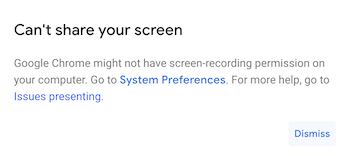
Cause: Permission not granted for Screen Recording
Solution: Reset permissions and approve Google Chrome
- Run the following command in terminal to reset the screen capture permissions for Google Chrome:
tccutil reset ScreenCapture com.google.Chrome - Navigate to System Preferences > Security & Privacy > Privacy tab > Screen Recording
- The Google Chrome box should not be checked. Check the box.
- If the box is still checked, apply system updates and reboot. Then start back at step 1.
- Quit and re-launch Google Chrome
Problem: Bad Request - Header Field Too Long (HTTP Error 400)
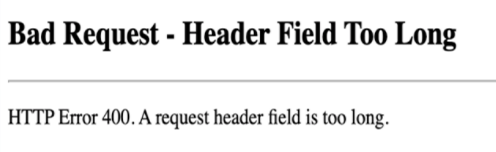
Cause: Site cache conflict
Solution: Remove cached data for that site
- Make a note or remember the site that you’re attempting to connect to when receiving the message
- It will probably be
sts.jackhenry.com
- It will probably be
- In the menu bar go to Chrome > Preferences
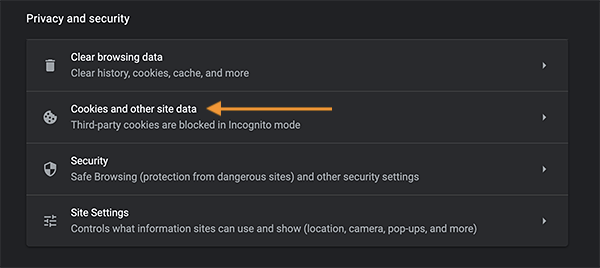
- On the new page that opens, scroll down to Privacy and security and select Cookies and other site data
- Click See all cookies and site data
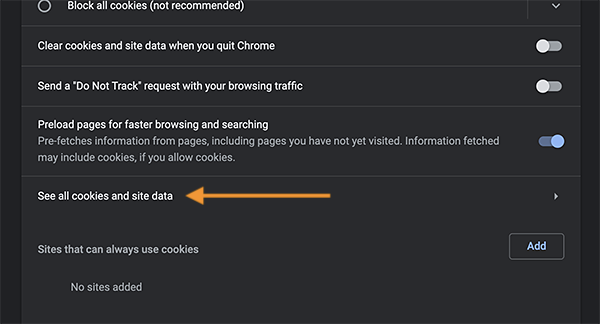
- Find the site that you were connecting to before experiencing a Bad Request - Header Field Too Long type of day and click the trash can to remove it
- Try the page again
To get to the same page in other browsers:
- Safari > Preferences > Privacy > Manage Website Data
- Firefox > Preferences > Cookies and Site Data > Manage Data
- Edge -> “…” (end of the url bar on right) > Settings > Site Permissions > Cookies and Site Data
Problem: The Bookmarks Bar Disappeared

Cause: You’ve accidentally discovered a keyboard shortcut!
Solution: While in your Chrome window, press command (⌘) + Shift + B. Your bookmarks bar will reappear at the top of your window.