If your Mac restarted because of a problem
Learn what to do if your computer restarts or shuts down unexpectedly, or you get a message that your computer restarted or shut down because of a problem.
About unexpected restarts
Rarely, your Mac might experience a software or hardware issue that requires it to restart. If that happens you may see the following screen:
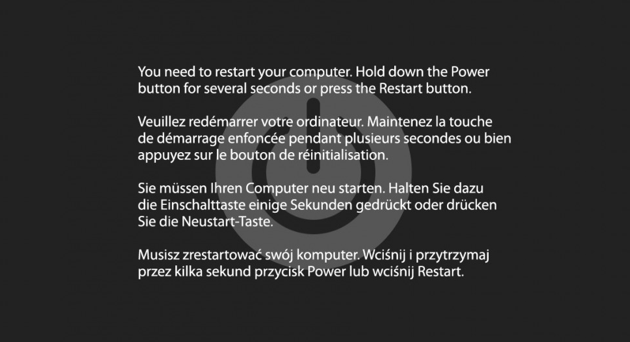
When it starts up again, you might see a message that your computer was restarted because of a problem.
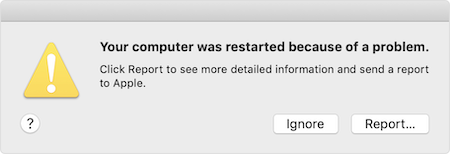
Unexpected restarts are usually caused by software installed on your Mac, or by devices connected to your Mac.
Troubleshooting
Check your software
If the issue is caused by software on your Mac, one of these steps might help:
- Install all available software updates.
- If your Mac suspects that a particular app caused the restart, it might ask whether you would like to move the app to the Trash. Click Move to Trash, then contact
#org-ground-controlto see if a software update is available. - Use safe mode to try to isolate the cause of the issue.
- Reinstall macOS. Contact
#org-ground-controlfor instructions on the best way to do this.
Check your hardware
Learn how to check your connected devices and other hardware.
Check peripheral devices first
If you don’t have any devices attached to your Mac, skip to the next section.
Some Mac models use combo USB-C/Thunderbolt ports for power and peripherals. If you are using both left-hand ports simultaneously — usually one for power and one for video/peripherals — it can put out enough heat to trip the temperature sensor that lives on that side. Switch one (or both) of your plugs to the right-hand port(s).
If that does not solve the problem, try the following:
- Shut down your Mac.
- Disconnect all peripheral devices, such as hard drives or printers. If you have a desktop Mac, make sure that only a display, keyboard, and mouse or trackpad are connected.
- Turn on your Mac.
- Use your Mac for the amount of time that it would usually take for an unexpected restart to occur.
- If an unexpected restart occurs, check third-party hardware.
- If an unexpected restart doesn’t occur, turn off the Mac and connect one peripheral device at a time until an unexpected restart occurs.
Learn more
- If your Mac is frequently restarting unexpectedly, it’s important to determine the exact steps that lead up to the issue. The next time that your Mac restarts unexpectedly, record the date and time it occurs. These questions might help you diagnose the problem:
- Was the computer starting up, shutting down, or performing a particular task when the unexpected restart happened?
- Is the computer restart random, or does it happen every time you do a certain task?
- Does the restart happen when a specific external device is connected to your Mac or to a specific port?
- If you continue to experience unexpected restarts, contact
#org-ground-control