Local Mac Password Policy
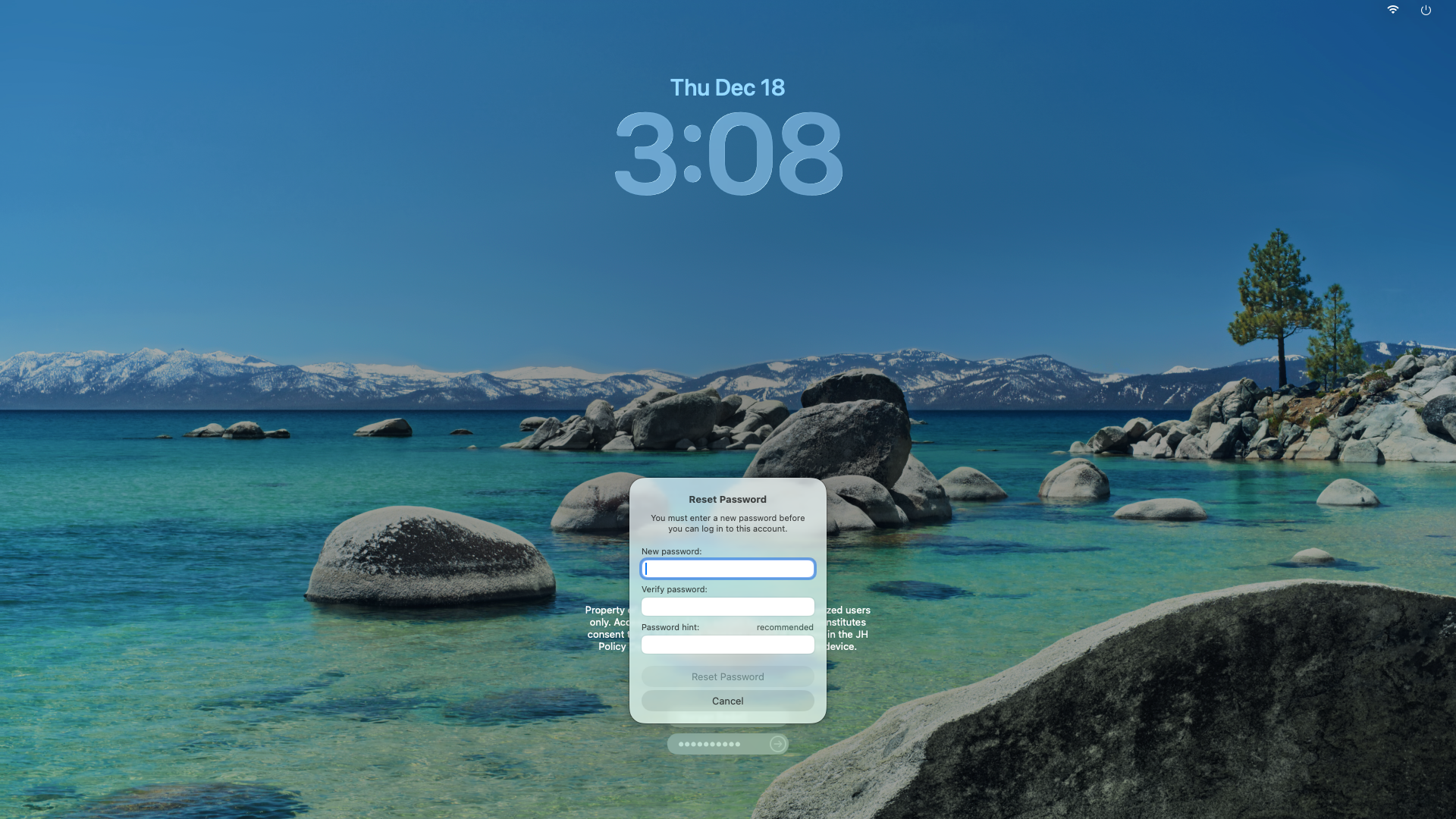
Local mac passwords must be 16 characters in length, not repeat previous passwords, and users will be prompted automatically to change them once every 365 days at login on the 364th day. The password change prompt will look like this:
Users may change their local mac password at any time. Instructions on how to do so can be found here.
Forgot Your Password?
If you forget your password and can’t log in to your Mac, contact Corporate Helpdesk at 877-846-5225 to retrieve your FileVault and Recovery lock keys. After you get those, follow these instructions.
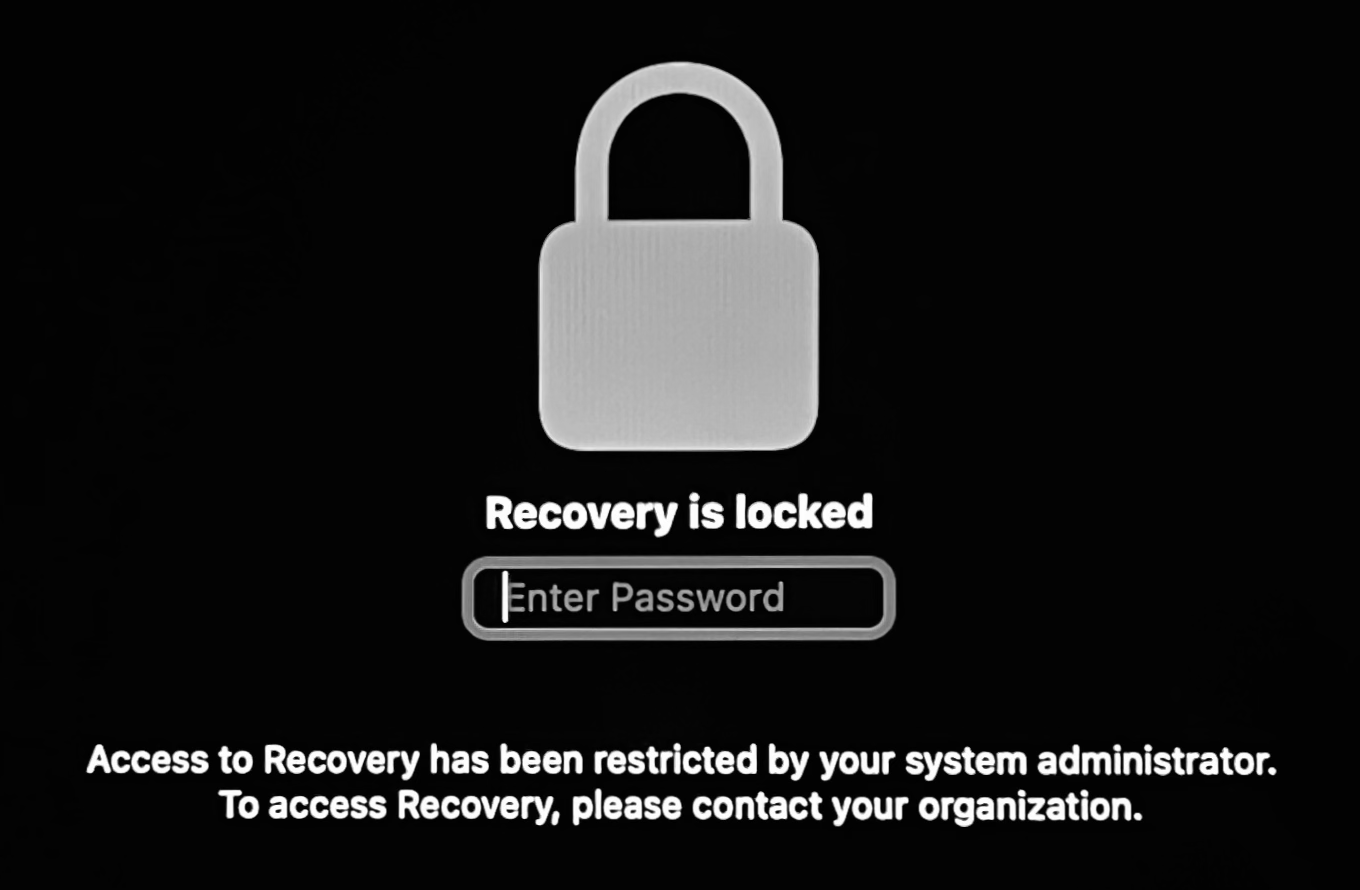
- Shut down your Mac. Then press and hold the power button until you see a screen that says Recovery is Locked.
- Enter your Recovery lock key. (This is the long key with only numbers.)
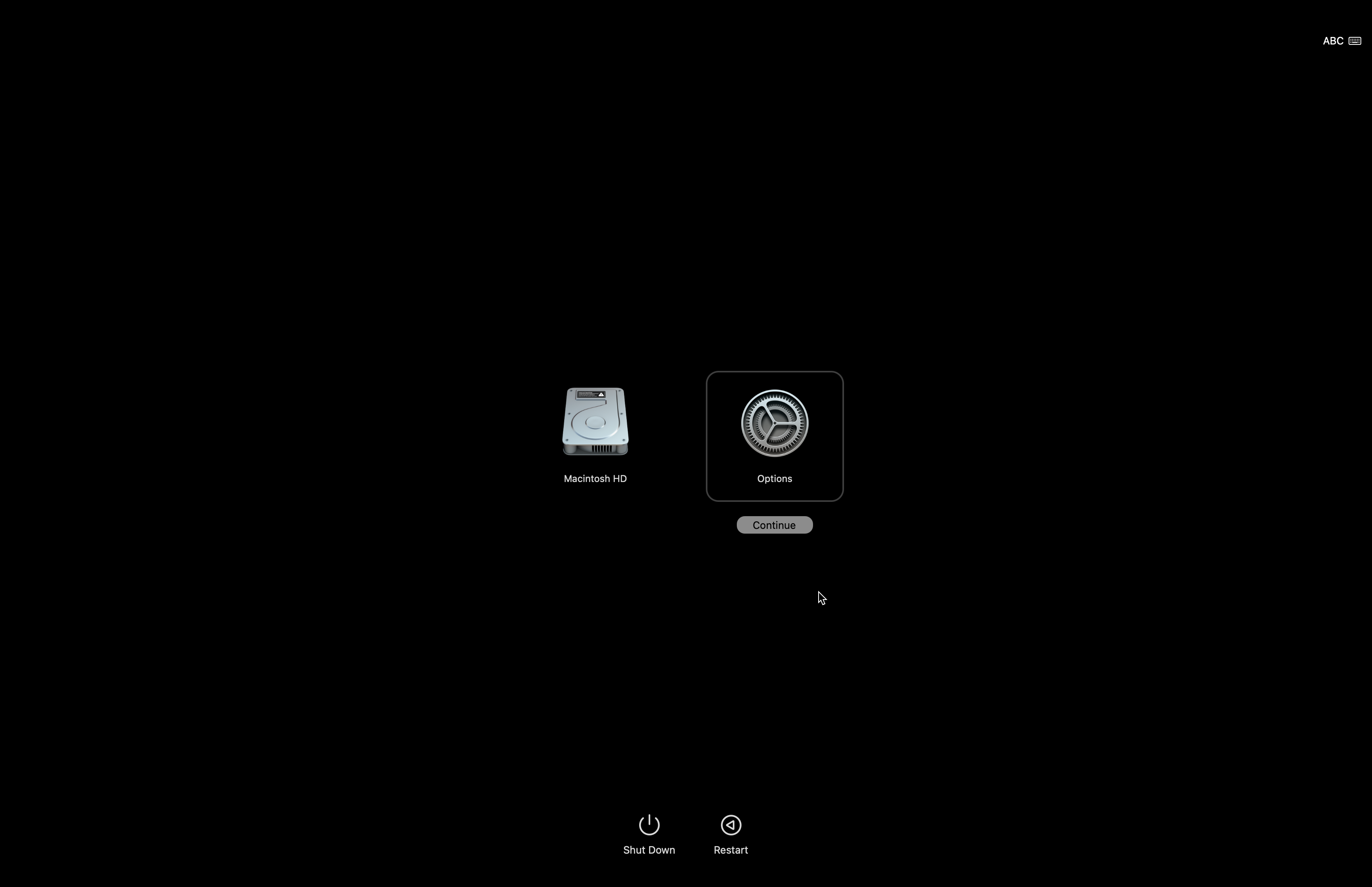
- Click Options, then click Continue.
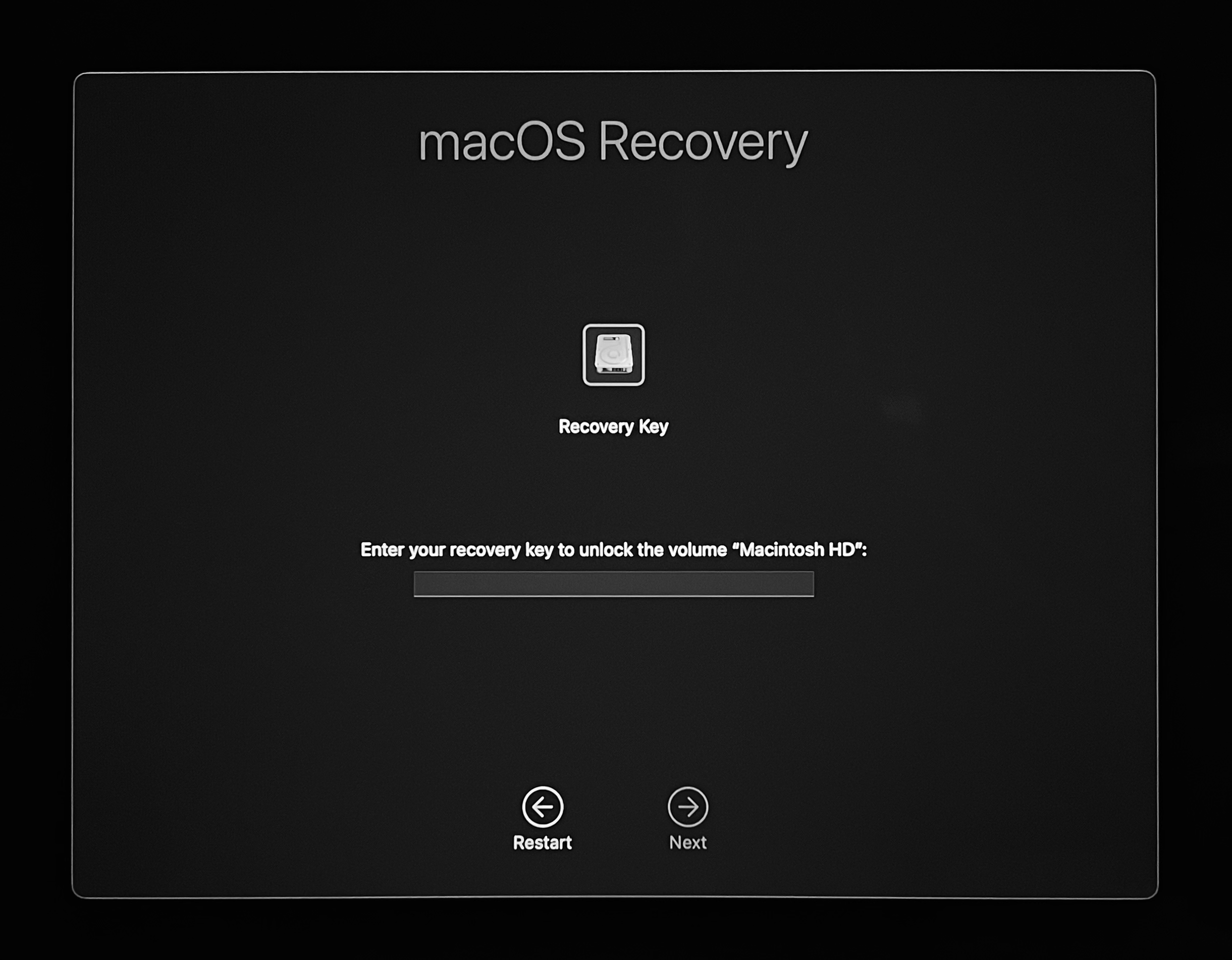
- Enter your FileVault recovery key.
- Select Reset Password when prompted.
- Select your user account and then click Next.
- Create a new password and then click Next.
- Click Exit to Recovery.
- In the top left corner, click the Apple menu and then click Restart.
- After your Mac restarts, log in with your new password.
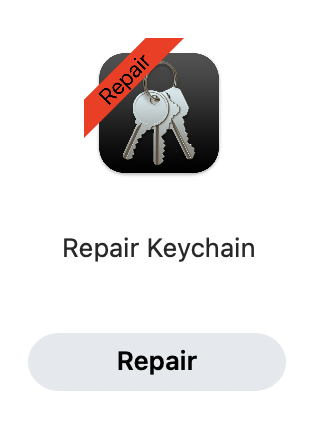
- Open Self Service+ and look for Repair Keychain and select Repair. This step may take several minutes. If you don’t see Repair Keychain, run Update Inventory first, then look for Repair Keychain again.
You may see a notification asking you to log out to repair your FileVault key. You can ignore this since you will automatically be logged out at the end.
- After your Mac restarts again, re-enroll in Company Portal.
Once you’ve followed all of the above steps, you’ve successfully reset your password!