So you just got a new Mac?
Maybe you’re a new hire, maybe you finally got that sweet upgrade, or maybe your old Mac decided to hop on a flight to Monaco without you. Either way, the process for setting up your new machine will be the same.
Important Things to Know
This is a lot of info but it’s all important, so please read everything and read it carefully before you get started. If during setup you see anything different than instructed, check to see if it’s addressed in a note, otherwise STOP and contact #org-ground-control on Slack.
Most standard software and settings will be configured automatically. However, there are a few steps left that must be done afterwards.
You Will Need
There are a few accounts and such you’ll need to have working before you get started. If you’re missing any of these, STOP and get them before you move on.
If you’re a New Hire, take a look at our checklist for directions on getting all of your accounts set up.
- Power cord
- If your machine goes to sleep or shuts off during this it could be left in an unusable state
- Network connection
- Hardwire ethernet is more reliable, but wifi will work
- If you do plan to use wifi, have your network and password information ready
- Working @jhacorp account
- Required to do the initial macOS setup
- If the password is expired it will not work
- You may test your @jhacorp account by logging in to bep.jackhenry.com on another device first (you can also use this site to change your password)
- Okta MFA Configured
- You may set this up during enrollment if you have not done so in advance.
- Activate by logging in at jackhenry.okta.com
- Download Okta Verify or Google Authenticator from the appropriate app store. More info here
- Whenever asked to verify your @jhacorp.com credentials, enter the appropriate token.
Getting Set Up
Initial macOS Setup
The setup process itself as well as the instructions below are intended to be as straightforward as possible. However, our environment is complex and sometimes things just happen, so it’s always a good idea to read through all the steps before beginning so you have an idea of what all to look out for.
- Power your Mac on by pressing the power button to the top right of the keyboard
- On some Macs this button is nearly indistinguishable from the touchbar; look for the shiny square bit on the right
- At the “Hello” screen, click Get Started
- Select your language, then click Continue
- Select your country or region, then click Continue
- Select any accessibility tools you wish to use, then click Continue; if none, click Not Now
- If not connected to ethernet, select your wireless network from the list, enter your password, then click Continue
- IMPORTANT: You MUST connect to the internet here for the rest of this process to work; if you can’t, STOP
- On the Remote Management screen, click Continue
- IMPORTANT: If you see anything other than this screen, STOP
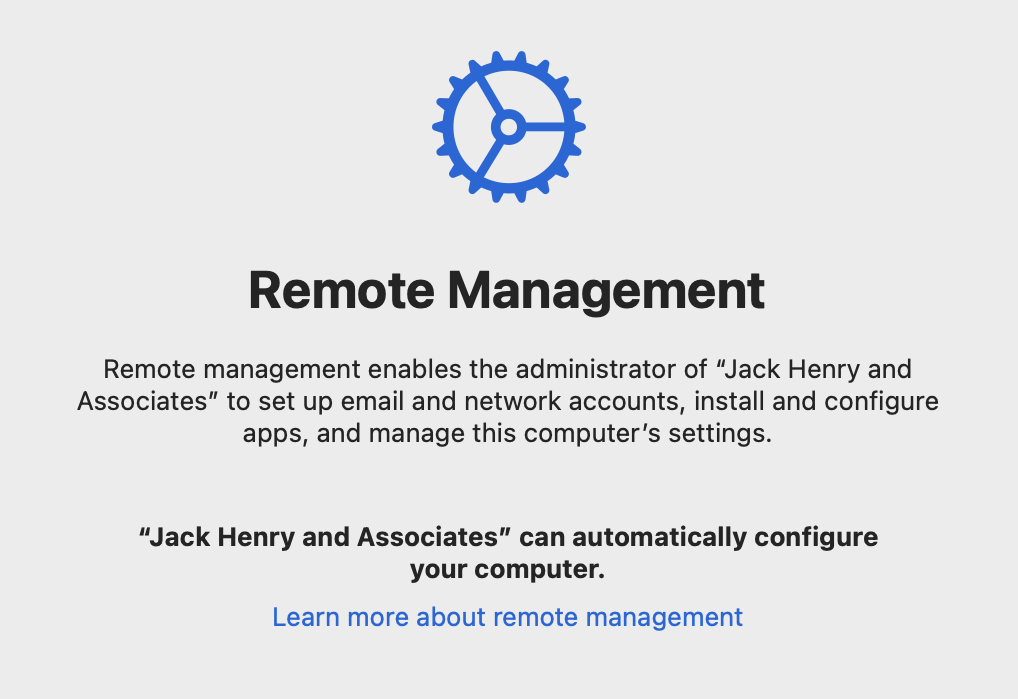
- IMPORTANT: If you see anything other than this screen, STOP
- Enter your @jhacorp username then click Next
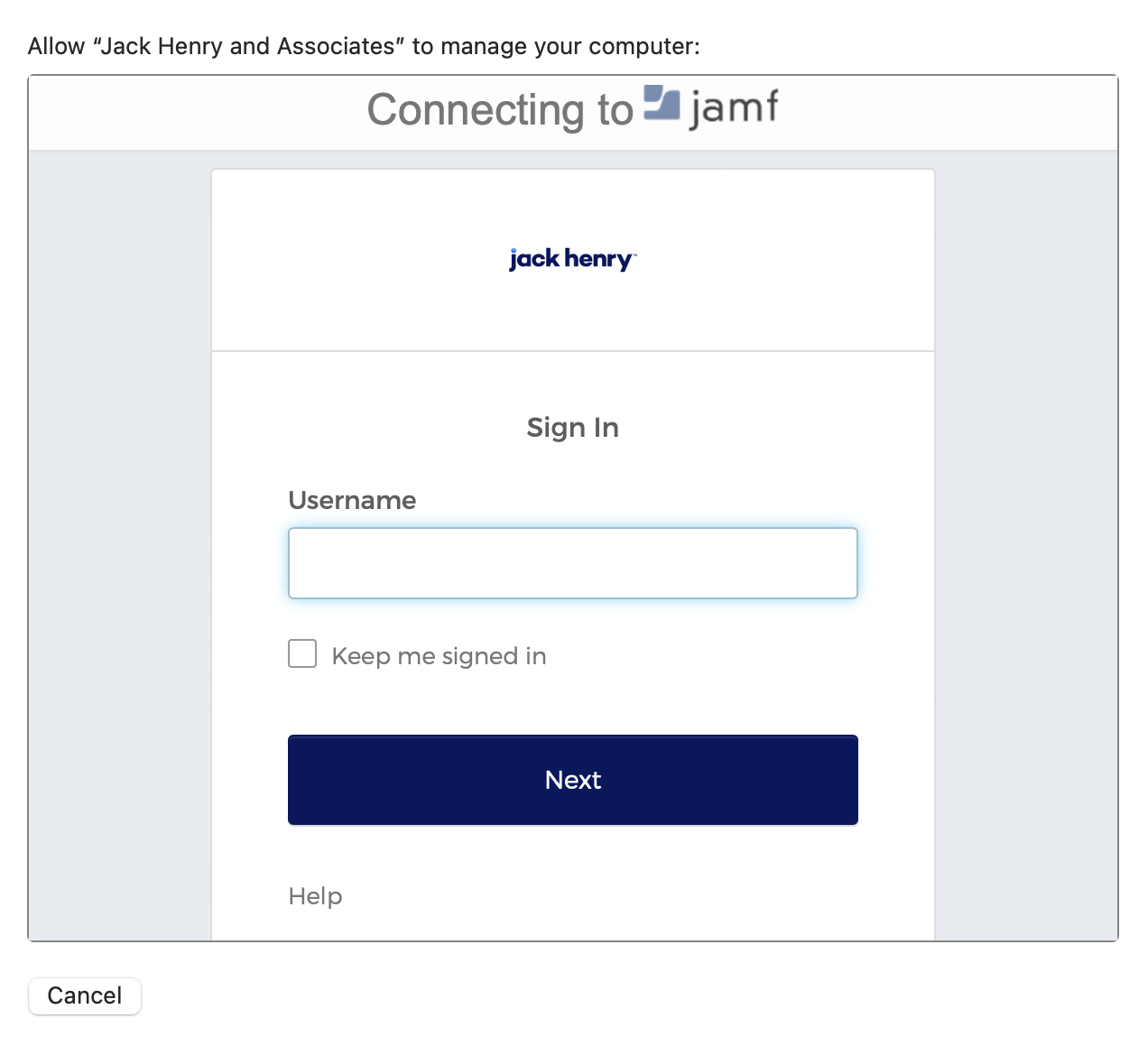
- Enter your @jhacorp password when prompted, then click Verify
- For new hires; this password should be sent to you prior to the start date. If you do not have it, check with your manager.
- If you have not yet set up an authentication method for Okta, you will be prompted to do so here. Select either Google Authenticator, or Okta Verify and follow the prompts. More info about Okta may be found here
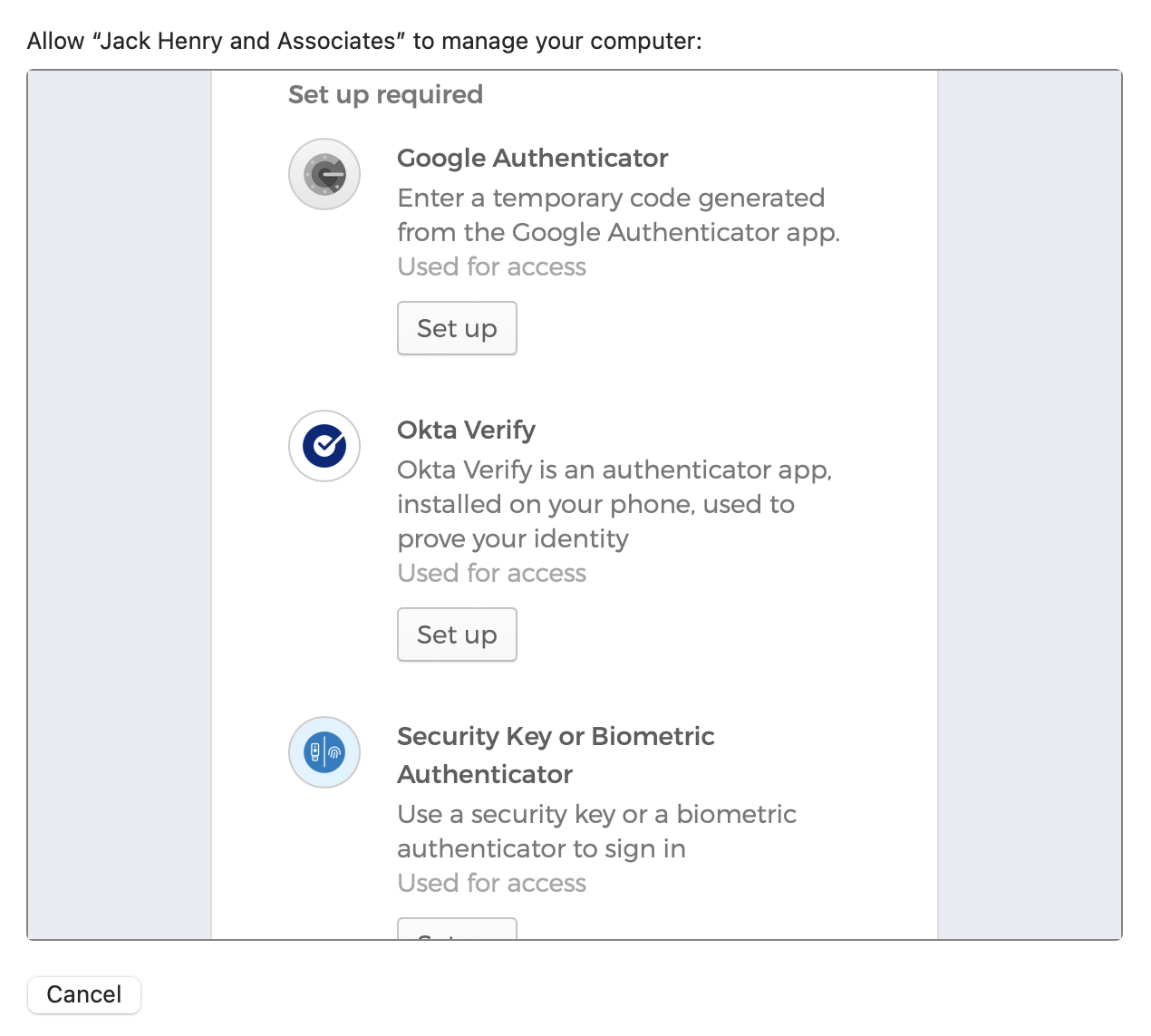
- Wait a moment - you’ll see a few things installing before it continues automatically
- On the Create A Computer Account screen, enter a password to use for your laptop, verify it, then click Continue
- IMPORTANT: This is NOT tied to any of your other accounts in any way (even though it has the same username). This is an entirely separate, local only account used to get into the laptop itself - make absolutely sure to remember the password you enter
- The full name and account name fields will be pre-filled based on the username you logged in with earlier
- Your password must be at least eight characters long and you’ll have to type it a lot - come up with something good
- Feel free to change your icon if you like
- Avoid entering a password hint
- If you would like for your clock (and time zone) to update automatically check the box to enable location services, otherwise leave it unchecked, then click Continue
- If you are asked to enable FileVault, click Continue
- If you would like to set up Touch ID, you may do so now, then click Continue. (Otherwise, click “Set up Touch ID Later”)
- Choose your look, then click Continue
- Wait a moment
- It may look like the last screen hung, just be patient
- When the desktop loads, keep waiting
- A window will pop up to start our automated software installation
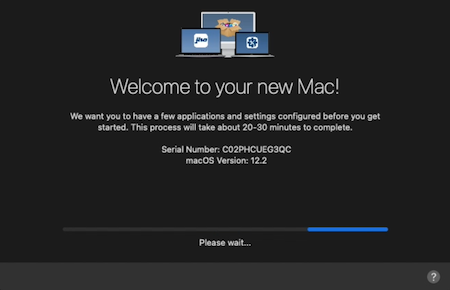
- It should start within a minute of the desktop loading
- If it hasn’t started within 5 minutes, STOP
- You may see windows popping up in the background, just ignore them
- When it’s finished you’ll be prompted to restart.
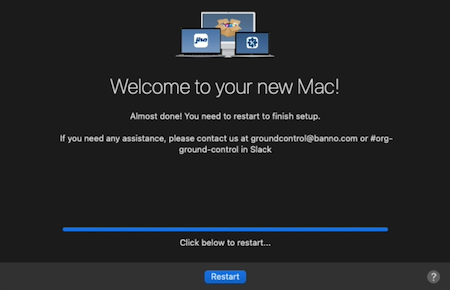
- Enter your username and password on the log in screen
- The username will be the same as your short form @jhacorp username (see step 8)
- The password will be the local one you created earlier (see step 12)
- If you see a FileVault prompt, click Enable Now, then OK
- Wait a moment - when complete your desktop will load
- Once at your desktop, an onboarding window will appear. This window will walk you through some additional information and onboarding steps. Please pay careful attention!
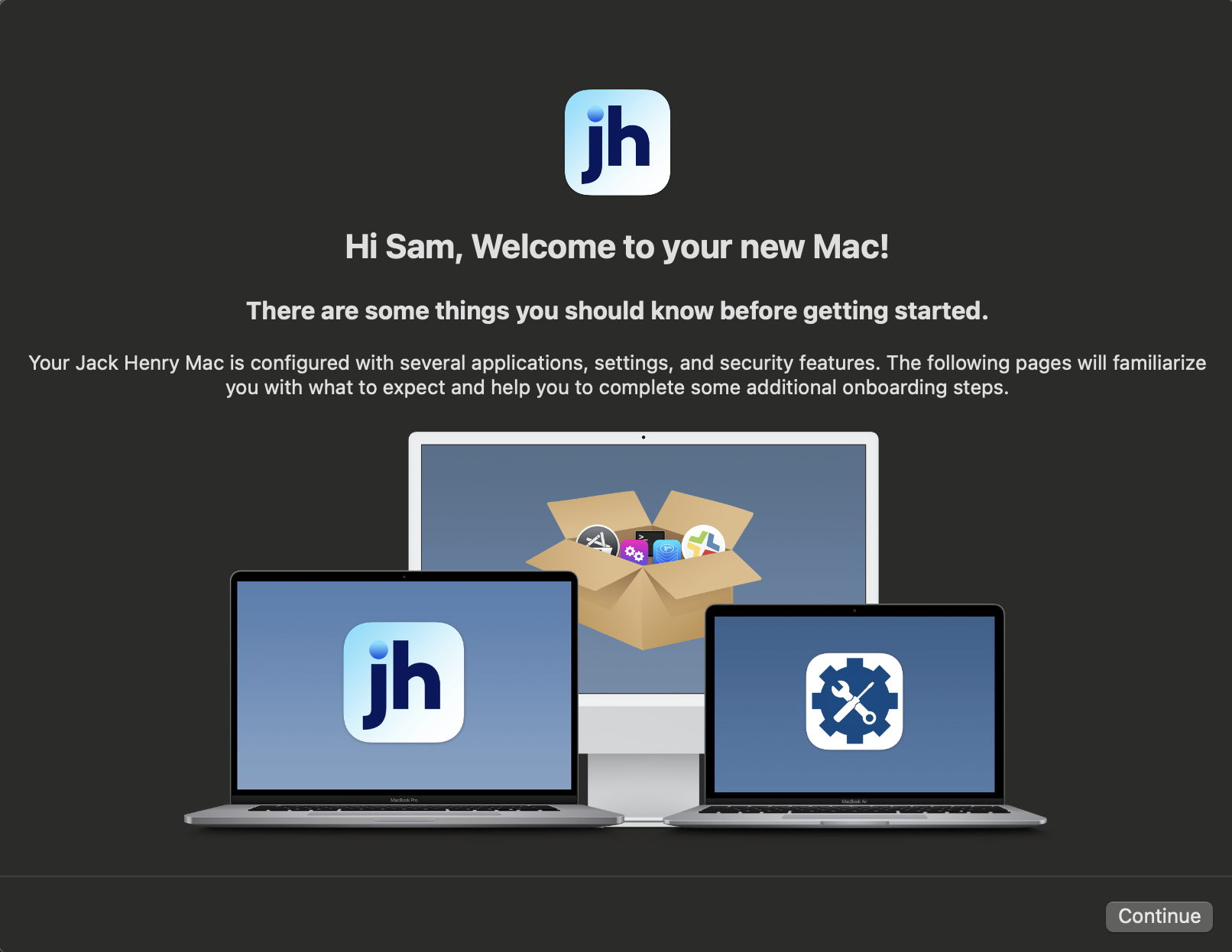
- You MUST view each page and complete the entire onboarding or this window will continue to appear each time your computer reboots.
- The last section in onboarding will walk you through how to enroll in Company Portal. This is REQUIRED. If you run into any problems or would like more information, see the company portal page.
Install Google Drive (Optional)
- Open the Self Service+ app and look for Google Drive.
- Click Install
- Open the Google Drive application and log in with your JH Google account.
Other Setup Steps
- Slack
- Workspace: banno.slack.com (this should be pre-set)
- Log in with the account you created with the invite
- Okta multi-factor authentication
- Activate by logging in at jackhenry.okta.com
- Download from appropriate app store. More info here
- Teams
- Log in with your @jhacorp.com account
- Migrate data from your old Mac
Miscellaneous Things You Should Know
Computer Account
The user account on your computer is an entirely separate local-only account that is not tied to any other JH credentials in any way. Any time you’re prompted for keychain access this is the password it’s asking for.
Software & the Self Service+ App
Most software titles you may need or want are available through the Self Service+ app, along with things like troubleshooting tools. If you need something and don’t see it in Self Service+, ask us about it in #org-ground-control and we can (probably) get it added.
AppleID
We do NOT recommend signing in with your personal AppleID on your work computer. It’s not currently blocked, but think about it: Do you really want your personal data on a machine subject to financial industry regulations?