Summary
- A system named Santa will block the execution of all applications and components that are not explicitly pre-approved.
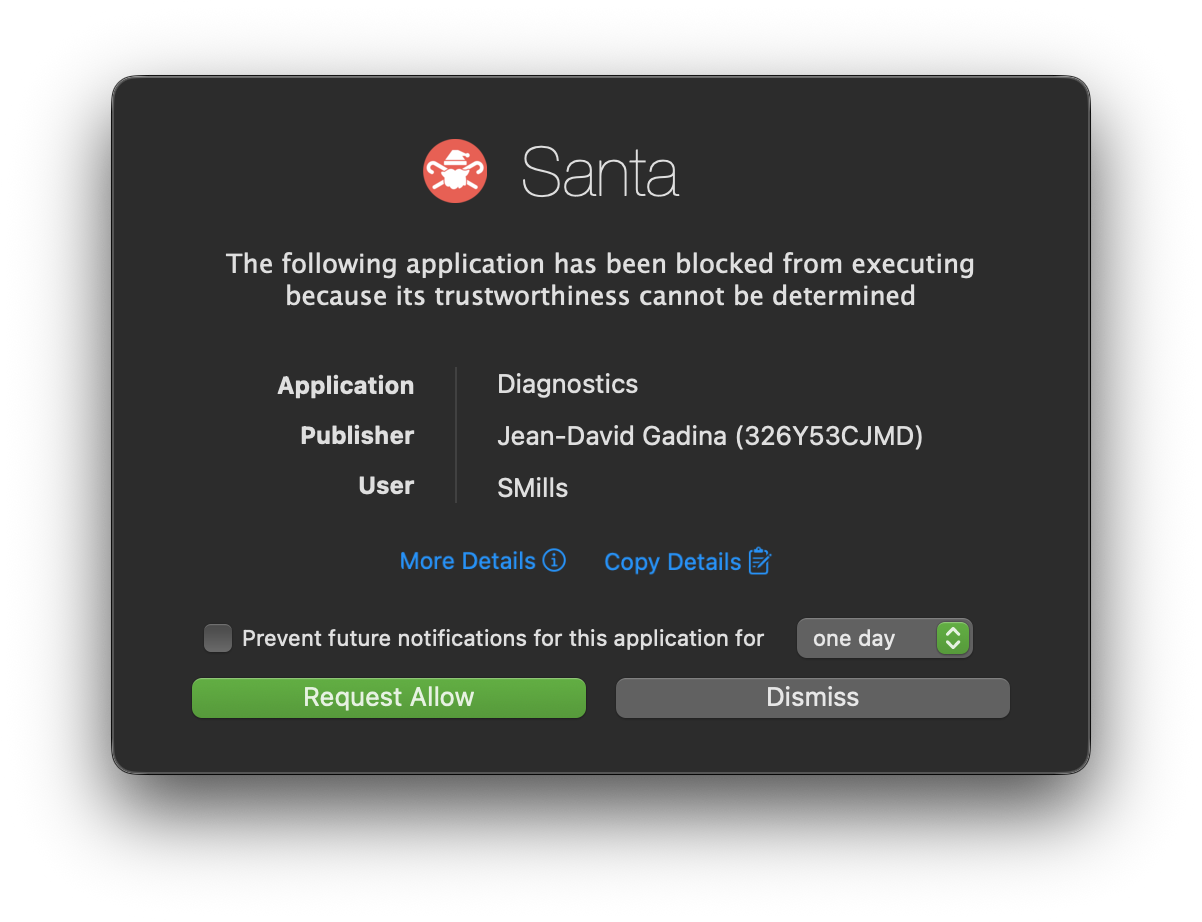
- When an execution is blocked you will be notified with a popup window.
- To run the blocked app, click Request Allow.
- You will be redirected to a web form. Fill out and submit the form.
- A GitHub pull request will be created on your behalf.
- A member of Digital leadership will approve or deny your request. You may monitor the
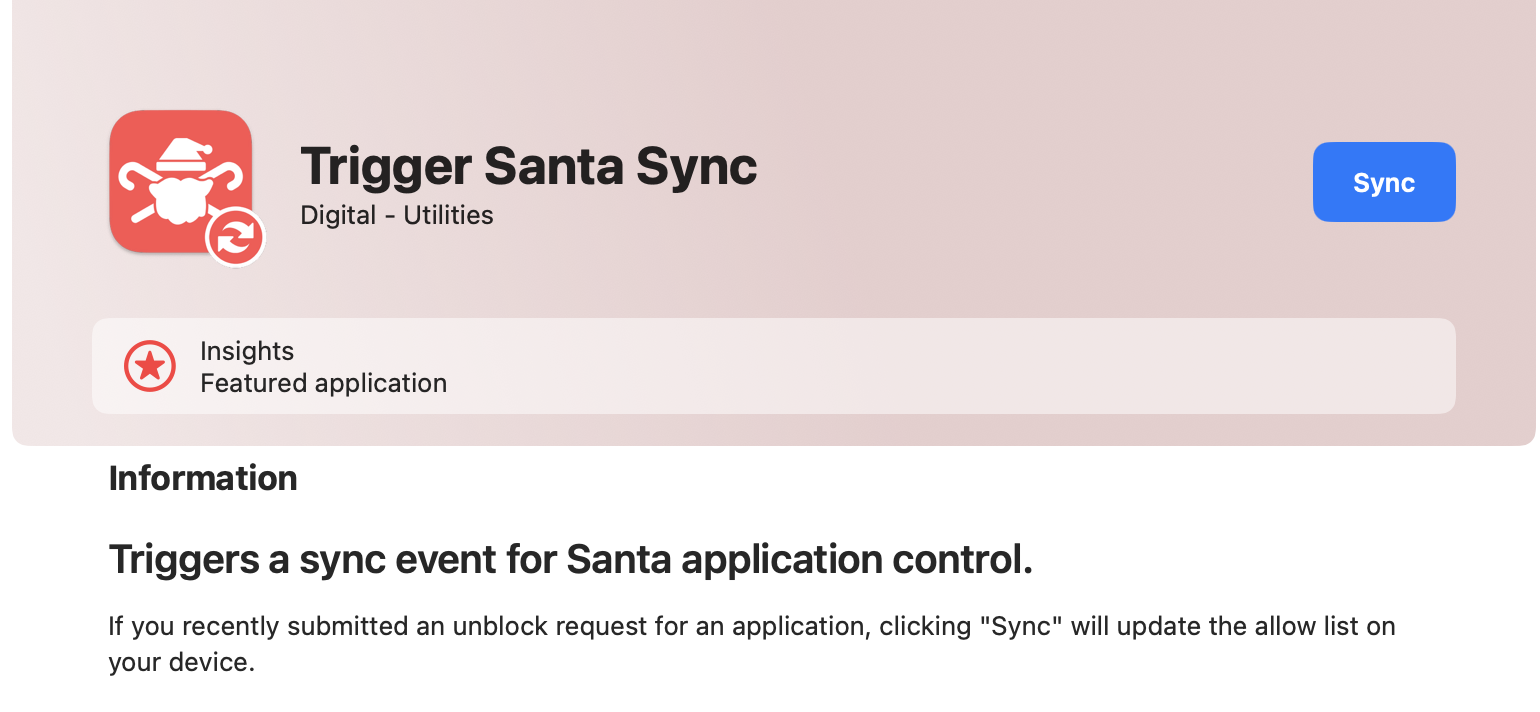
#org-santa-approvalschannel in Slack to see when a PR has been approved. - If approved, wait approximately 10 minutes for a normal sync, or sync on-demand in the Self Service+ application.
- The approved application can now be run on any computer within the organization.
See the following video for an overview
(opens youtube in a new tab)

Background
Santa is a binary authorization system for macOS. The Santa system extension monitors for executions, makes decisions based on the contents of a block or allow list (a naughty and nice list, if you will), and notifies you when an application is blocked.
Santa is written with the intention of helping protect users from themselves. People often download malware and trust it, giving the malware credentials, or allowing unknown software to exfiltrate data about your system. Santa is one part of a defense in depth strategy that helps Jack Henry Digital to stop the spread of malware across our Mac fleet. It is not intended to stop you from running trusted programs, even if they are not used for work related activity (Example: Spoify is allowed).
Blocked Applications
All unknown applications and components are blocked by default. When you install a new application, or an existing application changes in a significant way, that app is likely to get blocked. If an application is blocked, you will see something similar to this:
Requesting an Exception
If you see the above notification, but
You did not intend to run a new application
and/or
You do not recognize the application being blocked
Santa has done its job. Click Ignore and rest easy knowing that Santa is keeping you and our organization safe.
If you see the above notification, and
You intended to run the application
and/or
You trust the application being run
Click Request Allow.
You will be redirected to to a web form similar to the following:
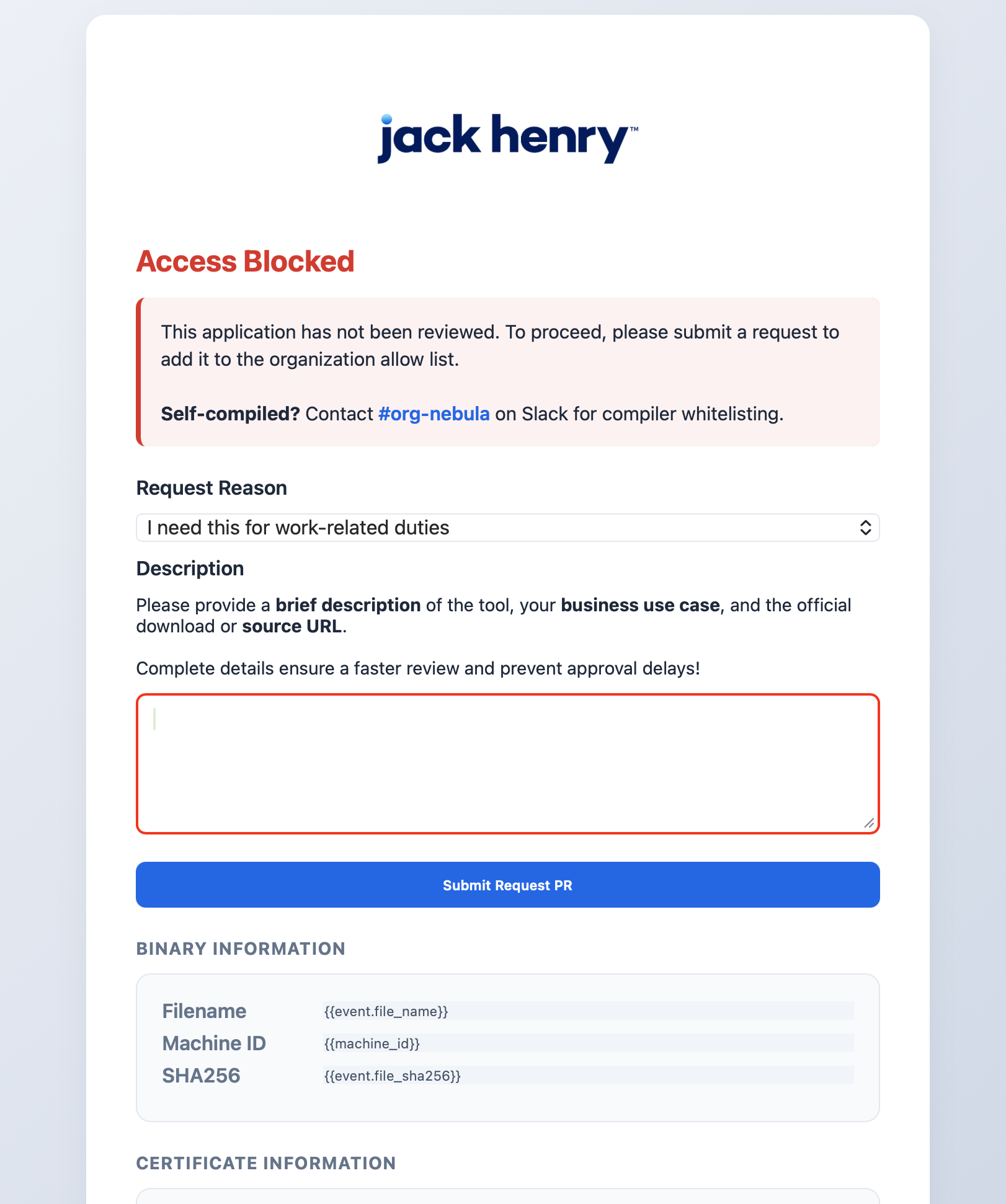
Click Create Request PR to automatically generate a GitHub pull request containing the information needed to add this application to the allow-list.
Once a PR has been generated, you will be provided a link to the PR for review. You may view all active rules on GitHub in the banno-santa-rules repository. Additionally, a message containing a link to the PR will be sent to the #org-santa-approvals channel in Slack. You may monitor this channel to see when your PR is created and/or approved.
Once the PR is approved, it will be automatically merged and the application will be added to the allow-list for all endpoints.
Running an Approved Application
Santa will sync rules once every 10 minutes. After the PR has been approved you may wait approximately 10 minutes for a sync to occur.
Alternatively, you may open the Self Service+ application and find the item named Trigger Santa Sync. Clicking Sync will update the rules on your computer and you will be able to run the application immediately.