JHA VPN
Corporate teams manage an F5 Big-IP VPN solution that gives our users access to; corporate resources, the JHA data center, Azure, AWS and non-proxy, non-MiTM web browsing (currently unfiltered). The devices are based out of Monett, Branson and Allen. Our internet-bound traffic passes through a firewall, but a list of exceptions is allowed through.
The BIG-IP solution is fully tunneled; all internet-bound traffic will go through the VPN tunnel. We are advocating for a change to policy that would allow some users split tunneling or potentially split tunnel for video services, but this effort is in the initial stages.
VPN Configuration
Access to VPN requires four components.
- BIG-IP Edge Client: preinstalled on your machine
- The server list should be pre-populated
- If your server list is not pre-populated, click the VPN icon in the menu bar > Manage VPN Servers > Add
https://dca.jhavpn.comand/orhttps://vpn.jhavpn.com/into the server address field.
- If your server list is not pre-populated, click the VPN icon in the menu bar > Manage VPN Servers > Add
- The server list should be pre-populated
- A VPN certificate
- Issued automatically
- Appropriate permissions applied to your
@jhacorpaccount - Okta configured
Internet ACLs
More specifics are available, but at the moment corporate allows internet-bound traffic from our VPN IPs to all destination IPs on ports for Google services (Meet, Docs, etc.), Slack video calls, freenode-irc, most mail ports (imap, pop3), and basic web services (web, ftp, ssh, ntp, whois, dns, and 8443).
BEP
The BEP site at https://bep.jackhenry.com provides off VPN access to resources that have traditionally only been available on the corporate network. It leverages the same authentication mechanisms as VPN to securely use these apps without requiring VPN connectivity.
- Microsoft cloud-hosted services: jhaToday, Office 365 email and apps, Teams
- PeopleSoft Applications: CRM (customer tickets), FSCM (Finance), HCM (HR)
- Else: Building access, Policy Center, JHAUniversity, Directory, Service Center (8100/JHA helpdesk)
Troubleshooting
Problem: Client Certificate Validation Failure
Note: If you are a contractor, you may not have automatically get a certificate. If you have never logged into VPN before, contact Ground Control first.
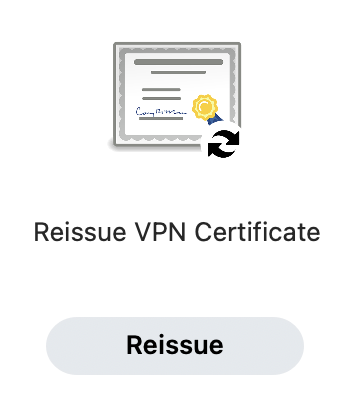
If you get this error, open Self Service+ and run Reissue VPN Certificate. This process may take several minutes. Once complete, restart your Mac and try logging into VPN again.
Problem: Spinning Wheel
In the Big-IP client, the authentication looks successful, but a spinning wheel is shown in the client and it never successfully connects.
Cause: The user is not in the correct Active Directory group to authorize access to VPN.
Solution: Ground Control can work with Identity management to verify the appropriate group membership and correct it if necessary.
Problem: I can’t get to certain resources
Cause #1: Not accessing the correct endpoint
Solution: Corp blocks some resources Digital doesn’t so make sure you’re using our endpoint: https://dca.jhavpn.com
Cause #2: Incorrect AD group membership
Solution: Check-in #org-ground-control so we can make sure you’re in the right VPN group(s) for your role
Problem: Name resolution issues
When doing DNS queries and NXDOMAIN response is returned
Solution: Confirm that you’re connecting to https://dca.jhavpn.com
Problem: Alert Pop Up
Users may see a pop-up when turning the VPN on. The pop-up states “Your configuration data appears to be corrupted. Would you like to reset them to their default values?” Users should have the option to ‘Cancel’ or ‘Continue.’ Pick ‘Continue,’ and your configuration will be updated once the VPN is connected.
Problem: continually promps for Mac password
If the VPN Client keeps prompting for you Mac password and you’ve already ran Privileges.app and selected Always Allow (as pictured below) then try reinstalling the VPN App.
To reinstall:
- Open the “Self Service+” app (formerly known as “Tech Services”)
- Search for “reinstall”
- Click on “Reinstall Big-IP Edge Client”