Slack Rooms
- #team-support-ux for any front-end questions related to the Support app
- #org-conversations for generalize Conversation questions
- #org-ux-admin for asking to switch on abilities/permissions/feature flags or general ux-admin questions
- #proj-admin-qa-docs for questions about the QA testing docs
Relevant Environments
The Platform (ux-admin team - choose your institution):
- https://platform.banno-development.com (Development)
- https://platform.banno-staging.com (Staging)
- https://banno.com/ (Production)
Banno Online (online team - Your FI test institution):
- https://yourfi.banno-development.com/login (Development)
- https://yourfi.banno-staging.com/login (Staging)
- https://accounts.your-fi.com/login (Production)
Key Terms
- Consumer User - A user from outside of the institution making conversation with an institution’s Support team. Usually starting a conversation from Banno Online.
- Enterprise User - A user within the institution itself, usually part of their support team, handling the conversation cases.
- Event - A secure websocket event sent or received from the server
- BO - Banno Online, found here: https://yourfi.banno-staging.com/login
URL parameters
- select - false if the search bar is visible, true if not visible.
- statuses - new, pending, and open by default OR new, pending, open, and closed when the search bar is open. Can be changed to anything with chips added.
- assignedTo - the logged in users user id (My Cases), the string ‘unassigned’ (Unassigned), nothing (All Cases) OR the user id of the chip selected if searching.
- query - the search text.
- consumerUserIds - the ids of any consumer users being searched. This is filtered via People after selecting the “View in Support” button on a conversation message.
- activityRange - the date range selected by the user in the filter dialog.
- groupIds - the ids of any groups selected in the filter dialog or searched.
- tagIds - the ids of any tags added via search or the filter dialog.
Support Inbox QA | Knowledge Base
Case List | Figure
- Changing the filter dropdown (All Cases, Unassigned, My Cases, or a group) should load the case list with a spinner and show the proper cases.
- Groups filter will only have conversations in it if the institution has a rule setup (in the Rule Management Settings page) to forward a conversation on a specific action to that group.
- Clicking the search icon should show the search bar
- If the user has already searched something - it should show a recent searches card right under the search bar
- If the user starts typing in the search bar - a suggestions card should show and update as the user types (Fuse.js weighted suggestions).
- These suggestions should have full keyboard navigation
- Selecting a suggestion should add a chip to the search bar and filter appropriately - adding multiple chips via selections should be possible. URL params should be updated.
- If there are already chips in the search bar and the user clicks the search bar - it should show text again and the user should be able to delete the text and press Enter to remove a chip. URL params should be updated.
- Clicking the small x on the search bar should clear all filter options but the statuses (all statuses).
- Clicking the large x on the outside of the search bar should bring the user back to the same filter dropdown they were on before.
- Reloading the page with the search box open should keep the search box open - same with any filters that get added (refer to the URL params above).
- Removing any of the filter queries in the url and reloading should remove the respective filters.
- Click the Search and Filtering Options button - should open the search and filter dialog
- Any filters that already existed in the search bar should auto-populate the filter dialog
- Adding any new filters and applying them should add chips or text to the search bar. URL params should be updated.
- Clicking a conversation - should load the conversation after a spinner
- Receiving new conversations - If a filter is applied, you should not be seeing new conversations in the current case list (created in Banno Online). If the filter matches, it should show with a new status.
Case List Toolbar | Figure
- Clicking on a list item checkbox will show the toolbar at the buttom of the Case List
- The toolbar gives the ability to change the state of multiple cases at one time
- Status
- Watching or not
- Assignee
- Tags
No Conversation selected | Figure
- Clicking Start a Conversation - should open the start conversation dialog
Conversation Selected | Figure
Main chat window | Figure
- Messages Types (websocket events)
- MESSAGE (Consumer or Enterprise) - The regular message
- INTERNAL_NOTE (Enterprise Only) - The internal note sent via the internal note button in the chat compose area
- AUTO_REPLY (Enterprise Only) - The reply that happens when the institution has a rule set to automatically reply in conversations (Support → Settings → Rule Management)
- ATTACHMENT (Consumer or Enterprise) - A basic file or image attachment (images should show as an image once submitted in the chat window, files will be a downloadable card)
- CHOOSE_NOUN (Enterprise Only) - Can be one of three things: Transaction List, Accounts List, or Payments List. These create selectable items in Banno Online (Consumer).
- NOUN
- AUTHENTICATED_FORMS (Enterprise Only) - Forms that will be filled out by the consumer user. Will be a small card in Support (when submitted - clicking it opens a dialog of information), but a full form is in Banno Online.
- USER_JOINED (Consumer or Enterprise) - When a user first sends a message or when the conversation is created.
- VIDEO_PREPARED (Enterprise Only) - When a user creates a new video chat and sends it in the chat, it should be a card that allows a user to join.
- CASE_ASSIGNED (Enterprise Only) - When a user gets assigned. This should show the user’s name that got assigned.
- CASE_UNASSIGNED (Enterprise Only) - When a user gets unassigned. This should show the user’s name that got unassigned.
- Dates
- Today
- Yesterday
- Less than 1 year ago - Tuesday, April 30
- Great than 1 year ago - April 30 2023
- Names
- Only one user with first name - first name
- More than one user with the same first name - first name last initial
- Grouping
- Elements in the chat window will be automatically grouped together if sent at similar times by the same user. Here is a list of events and the events that can be grouped.
<event sent>: <events possibly grouped>- Attachment: Choose noun, Message, and Noun
- Choose Noun: Attachment, Message, and Noun
- Internal Note: None
- Message: Attachment, Choose noun, and Noun
- Noun: Attachment, Choose noun, and message
- User joined: None
Chat compose area | Figure
- Sending a message
- Emojis - Currently 2021 emoji list?
- Saved Replies - Replies created in the Saved Replies section should be listed here with a search that highlights the text as you search.
- Video Chat - Sends a card that allows the user to join a video chat.
- Attaching
- Transaction List - A basic card in Support that allows for the Banno Online consumer user to select a transaction.
- Accounts List - A basic card in Support that allows for the Banno Online consumer user to select an account.
- Payments List - A basic card in Support that allows for the Banno Online consumer user to select a payment.
- Wires List - A basic card in Support that allows for the Banno Online consumer user to select a wire. Clicking the sent wire from a consumer user opens the Wire Details dialog (only in Support, not currently in Conversations pop-out)
- Form - Also called Authenticated Forms. Sends a basic card to the Banno Online consumer user that prompts the user to fill out a form created in the CMS app.
- Image or file - attaches a file or image. A file will show a card that allows you to download the file. An image should show in the chat window. Both should show a brief uploading card with a progress bar as they are uploading.
- Sending an internal note
- Only seen by Enterprise Users
- Includes extra meta text - “Only visible to your team”
- You should be able to send Emojis
User sidebar | Figure
- User’s Information
- Name - preferred name / first name and last name
- First Name - When the preferred name is used for the main name, we give the first name.
- Primary Institution Username
- Member Number
- Customer Id
- NetTeller Id
- Organization Name
- Organization Admin Level - The level of access this particular user has within the organization.
- Customer Phone Number
- Links
- View in People - Sends the user to the People profile of the consumer user shown in the sidebar.
- View organization details - Sends the user to the organization’s details page in People.
- Filtering Well
- Should contain only the first name of the consumer user in the text.
- The active customer count - a count of the active conversations that are currently in the case list. This should update as the customer changes filters.
- Chat Interactions
- Assignment - Should open a card of all Enterprise users as well as an unassign option.
- Status - New, Open, Pending, Closed
- Watchers - Start watching or stop watching. Automatically watching if you create the conversation from within Support.
- Tags - Adding a tag should happen by clicking anywhere on the input field and opening a card of tags. Removing a tag should happen through a small x on the tag chip itself.
Inbox Edge Cases
- When changing anything with the case list or the case itself (user sidebar updates for statuses, assignee, etc) you will need to test loading directly to the case with no cases in the case list.
- When using rules to apply tags, you’ll need to double check that these rules are getting appropriately added to the case list as well as the case itself.
- Date ranges on search and filtering should have local timestamps for 00:00am and 11:59pm
Support Settings QA | Knowledge Base
Support Hours | Figure
- Hours
- Changing the times of the support hours should directly affect when an auto reply gets sent to the consumer
- Reply Times
- The messages that you set will be viewable when creating a new conversation in Banno Online (or the mobile app)
- Updating these values should automatically update the live view on the right hand side
Holiday and Closures | Figure
- These holidays and closures also affect the auto replied message when a consumer sends a message to an institution when they are closed
- These days override the Support hours set
Email notifications | Figure
- Sending notifications are handled by the Kayak team
- All groups can be indvidually selected and emails should be parsed by commas
- The
Manage Groupslink should go to the Groups List inside of Users & Groups (formerly the Settings app) - Conversations
- A set of groups that contain the
Manage conversationspermission and NOT theManage form submissionspermission in Users & Groups
- A set of groups that contain the
- Form Submissions
- A set of groups that contain the
Manage form submissionspermission (with or without theManage conversationspermission) in Users & Groups
- A set of groups that contain the
Saved replies | Figure
- Add title and text to be searched and selected inside the chat compose area and get added to the text area of the conversation
Rule Management | Figure
- Adding a rule that conflicts with another rule should show an error message on the top of the card (as shown in figure 13)
- When Conditions
- A case is assigned to
- A case is forwarded to
- A new case is created
- A case is closed
- A message is received that contains
- A case is tagged with
- A user waits for a reply for longer than
- Then Conditions
- Assign to (shown with
When3, 4, 5, 6, 7) - Forward to (shown with
When1, 3, 4, 5, 6, 7) - Tag with (shown with
When1, 2, 3, 4, 5, 6, 7) - Automatically reply with (shown with
When3)
- Assign to (shown with
Tags | Figure
- Tags
- Clicking the create tags link should automatically create a new tag input
- Unfocusing that input after typing a name (or changing the color) should automatically save the tag
- Form Tags
- These tags get automatically created and tagged onto any new unauthenticated form submissions
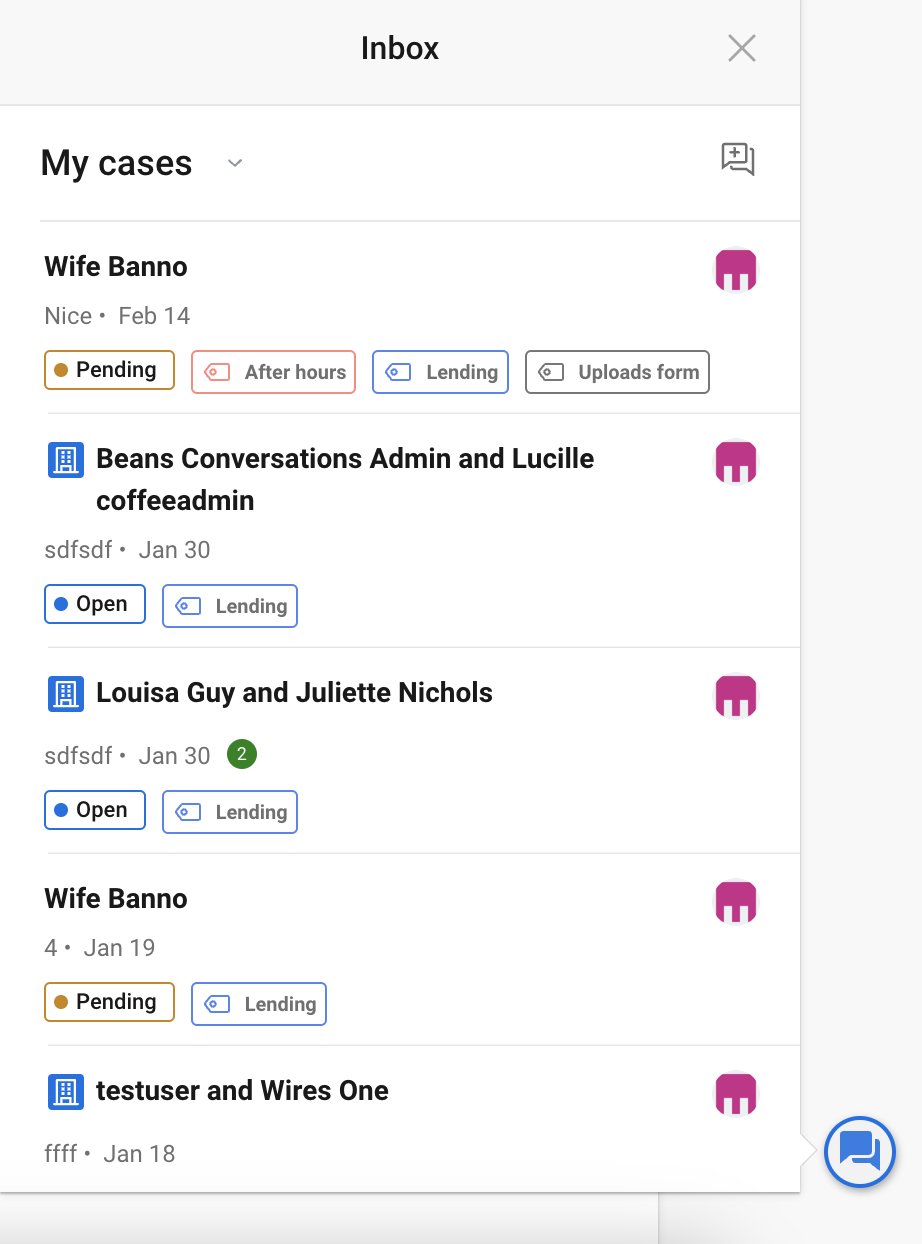
Conversations pop-out QA | Figure
The Conversations Pop-out has a lot of fundamental similarities to Support with some slight differences in layout with some things removed completely. There are no added features on top of Support.
Search and Filtering
- Search is completely removed from the case list along with any filter dialog interaction.
- Testing the filter dropdown (All Cases, Unassigned, My Cases) is the exact same as in Support. Refer to Case List (a).
Starting a conversation
- The button for starting a conversation is now next to the filter dropdown on the top of the case list
The consumer users information
- This information (the user sidebar in Support) is now contained in the top header of the conversation - clicking the ellipsis.
- Single consumer conversations - the ellipsis will show 3 options: About
<user’s first name>, View in People, and Case management. - Multiple consumer conversations - the ellipsis will show 2 options: About
<user’s first name>and Case management.
Images
Support Inbox Figures
Support Inbox
Figure 1 | Support Inbox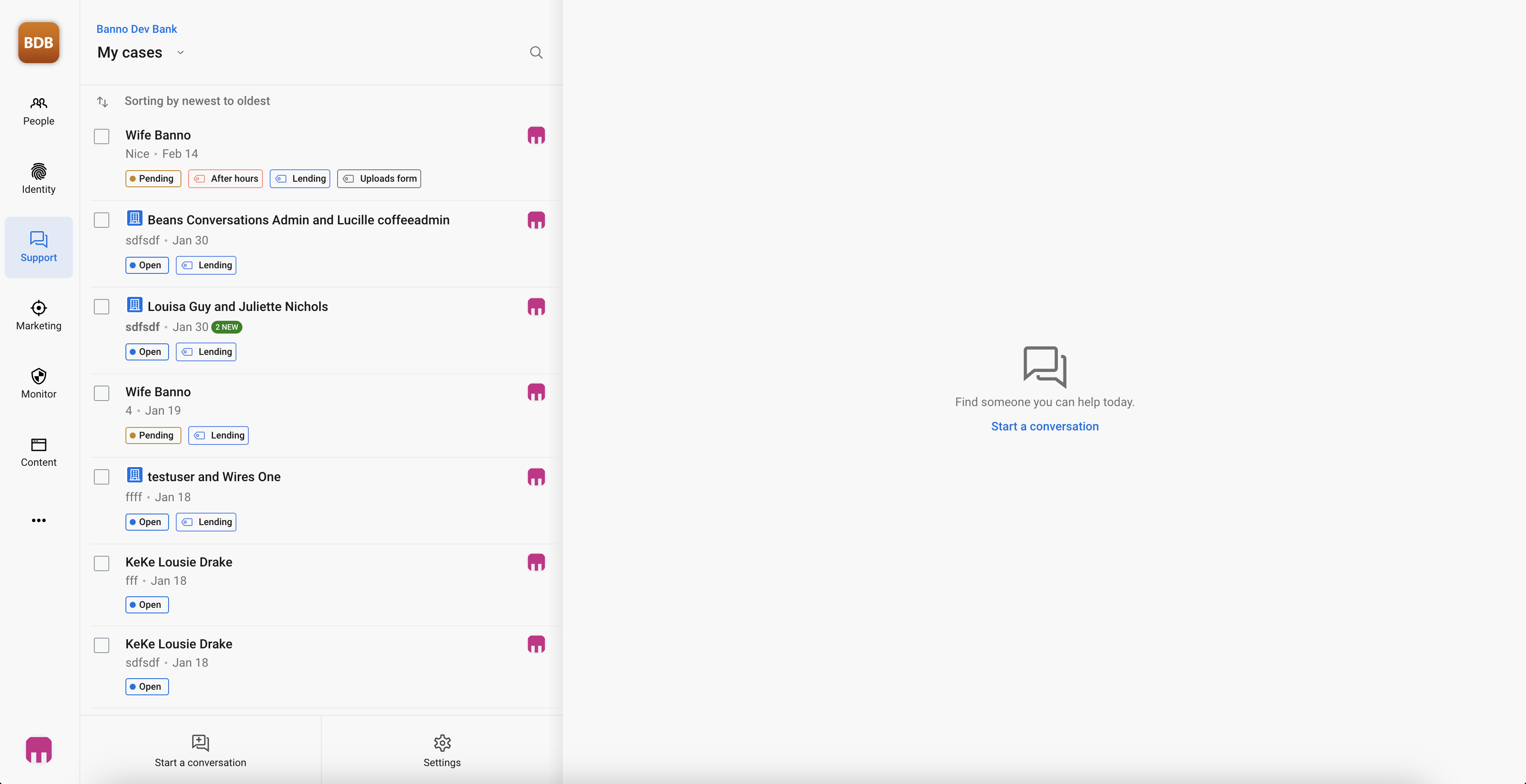
Case List
Figure 2 | Case List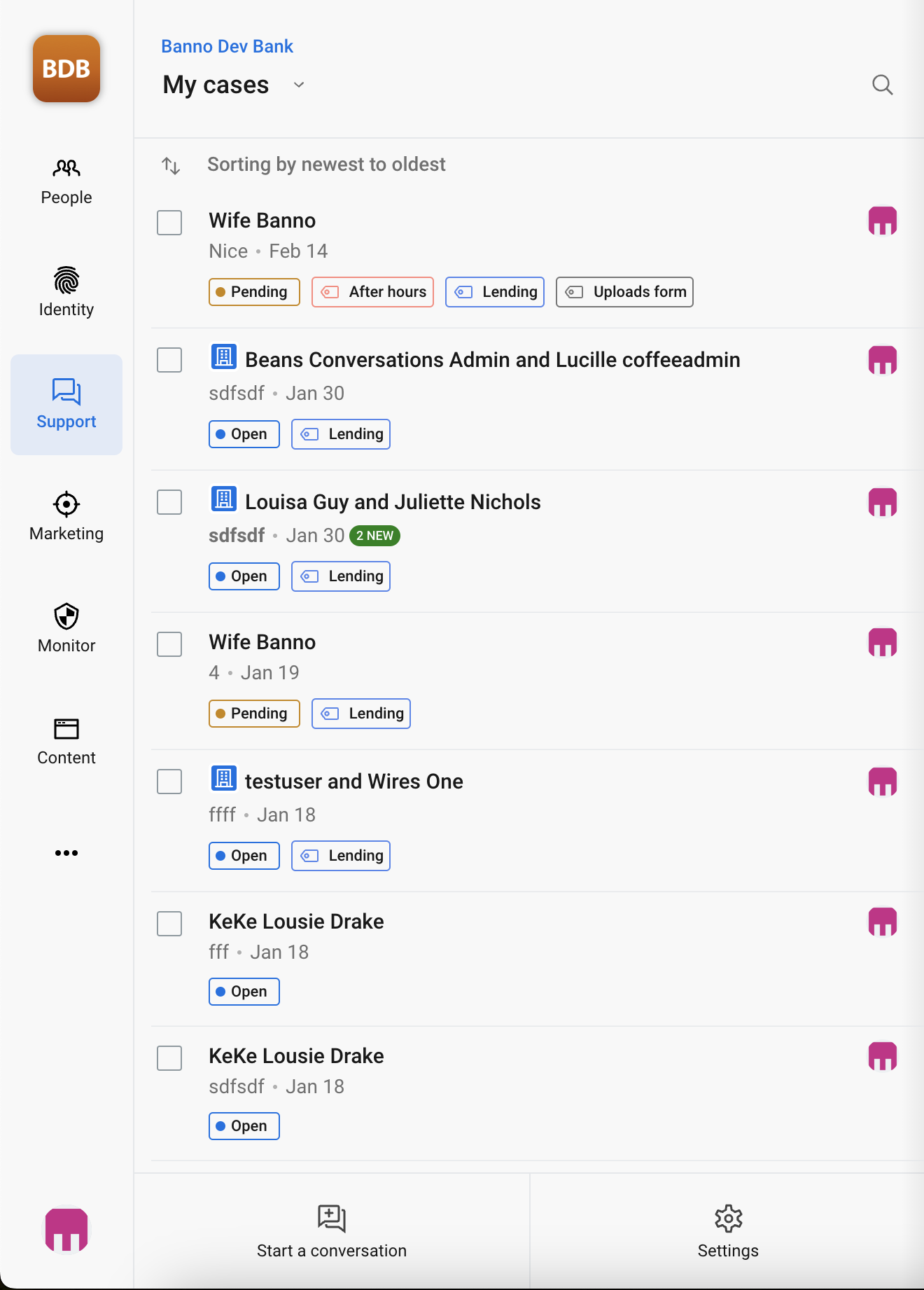
Case List Toolbar
Figure 3 | Case List Toolbar
No Conversation Selected
Figure 4 | No Conversation Selected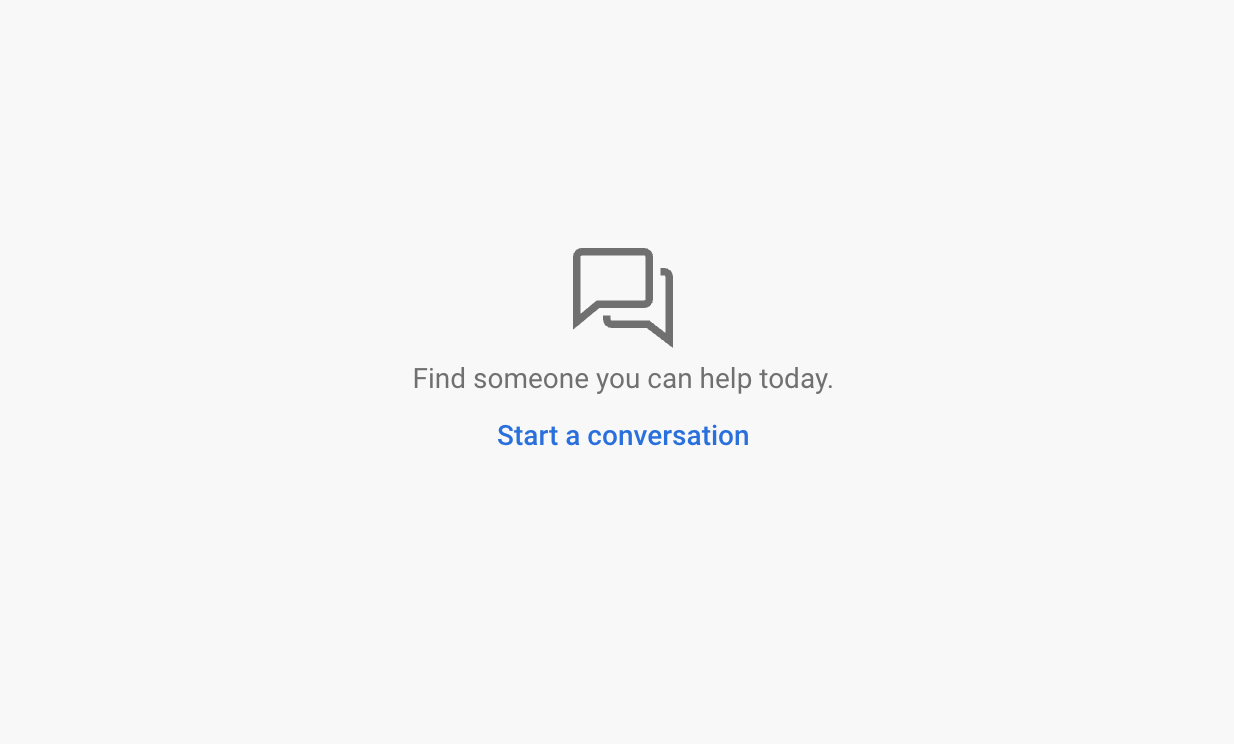
Conversation Selected
Figure 5 | Conversation Selected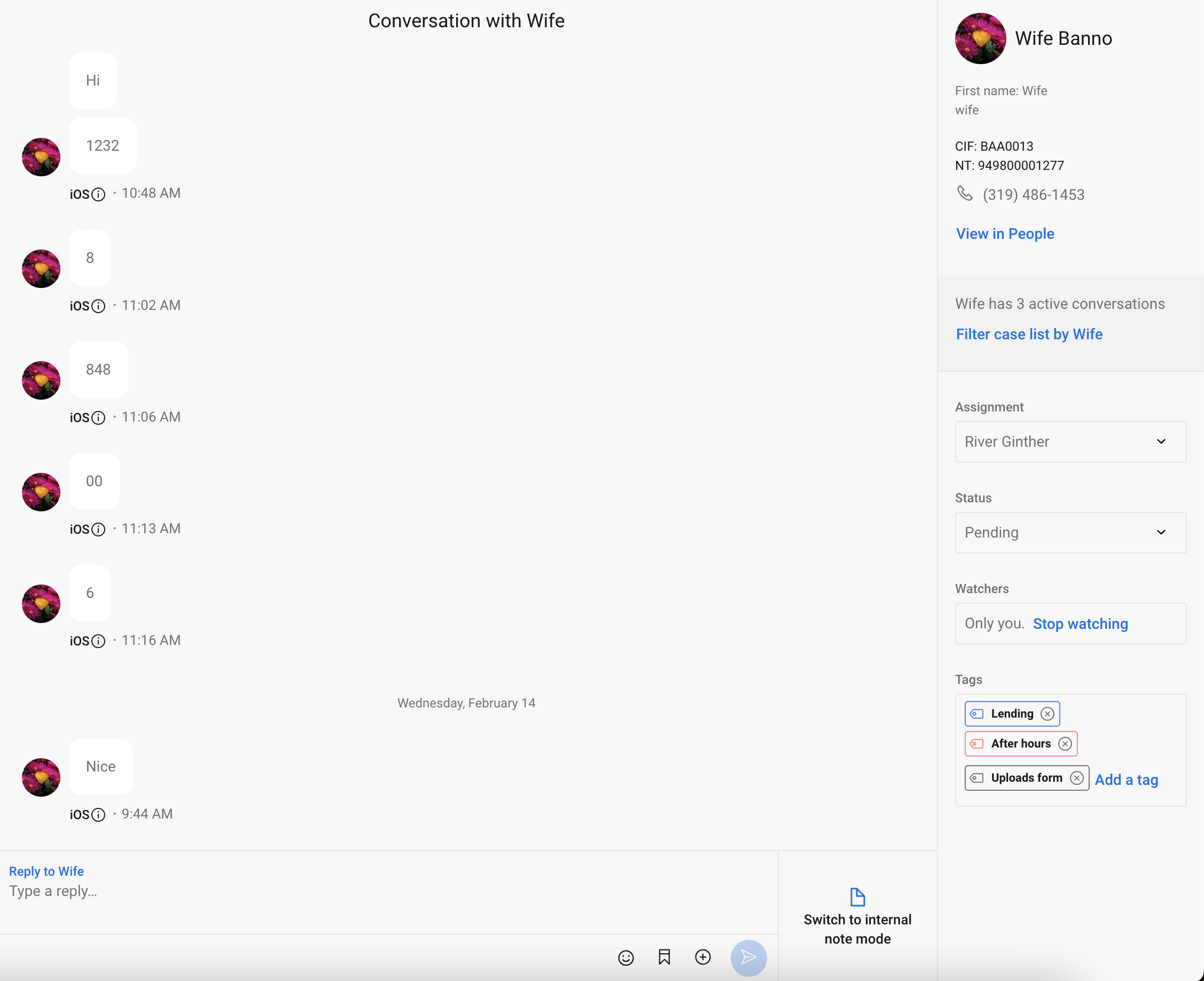
Main Chat Window
Figure 6 | Main Chat Window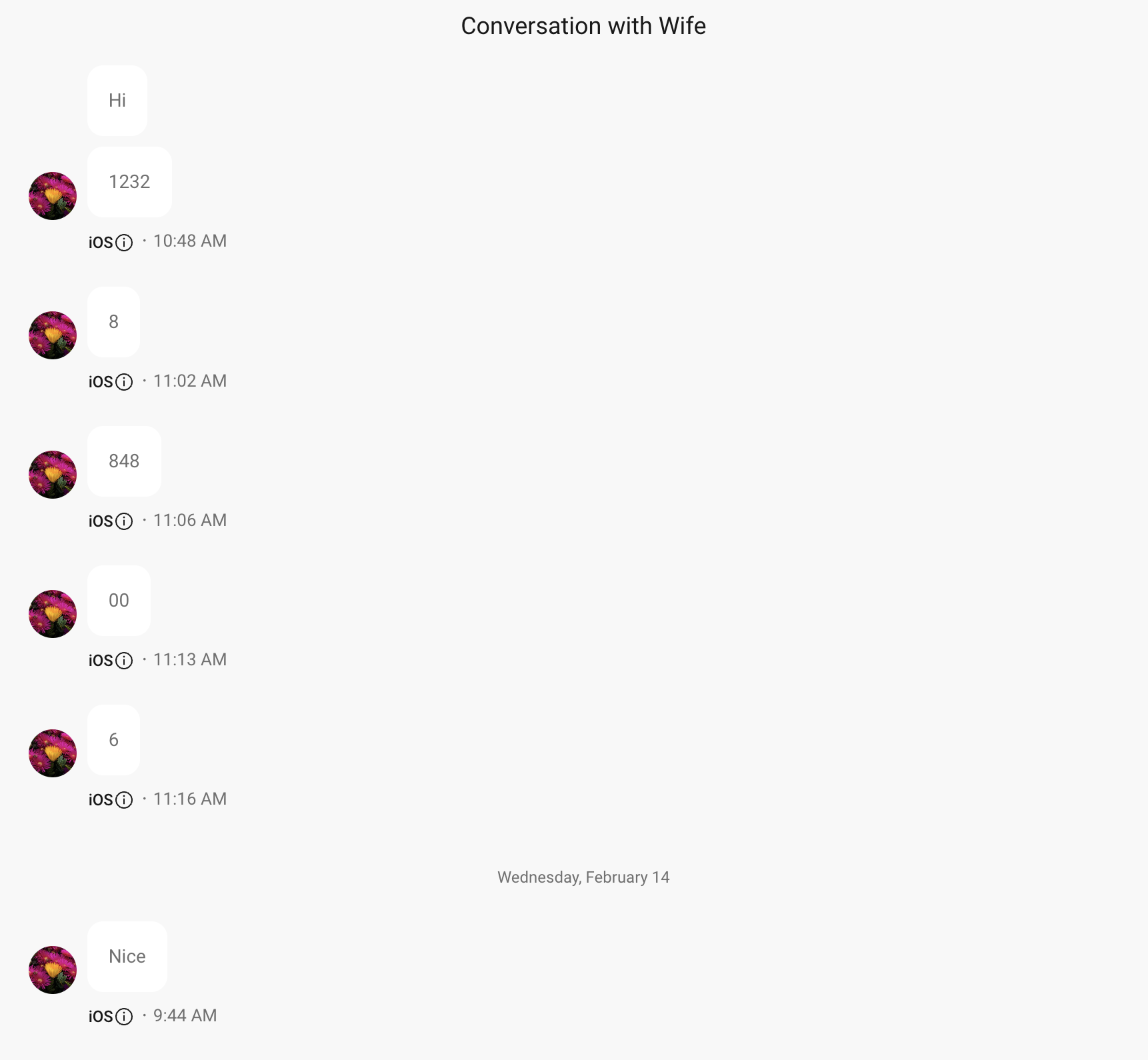
Chat Compose Area
Figure 7 | Chat Compose Area
User Sidebar
Figure 8 | User Sidebar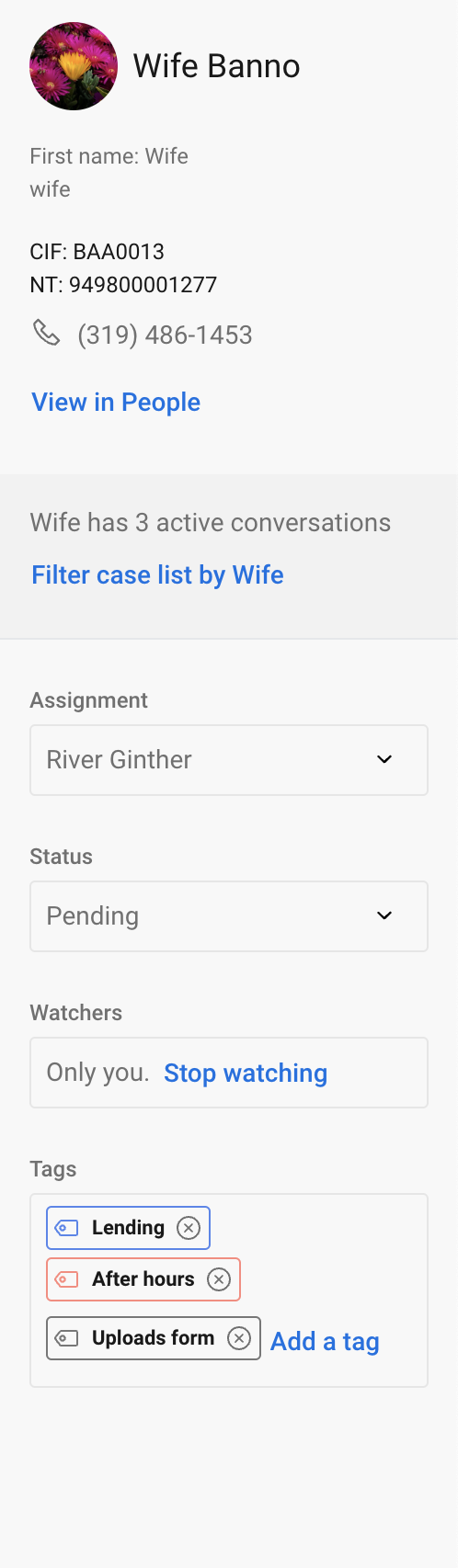
Support Settings Figures
Support Hours
Figure 9 | Support Hours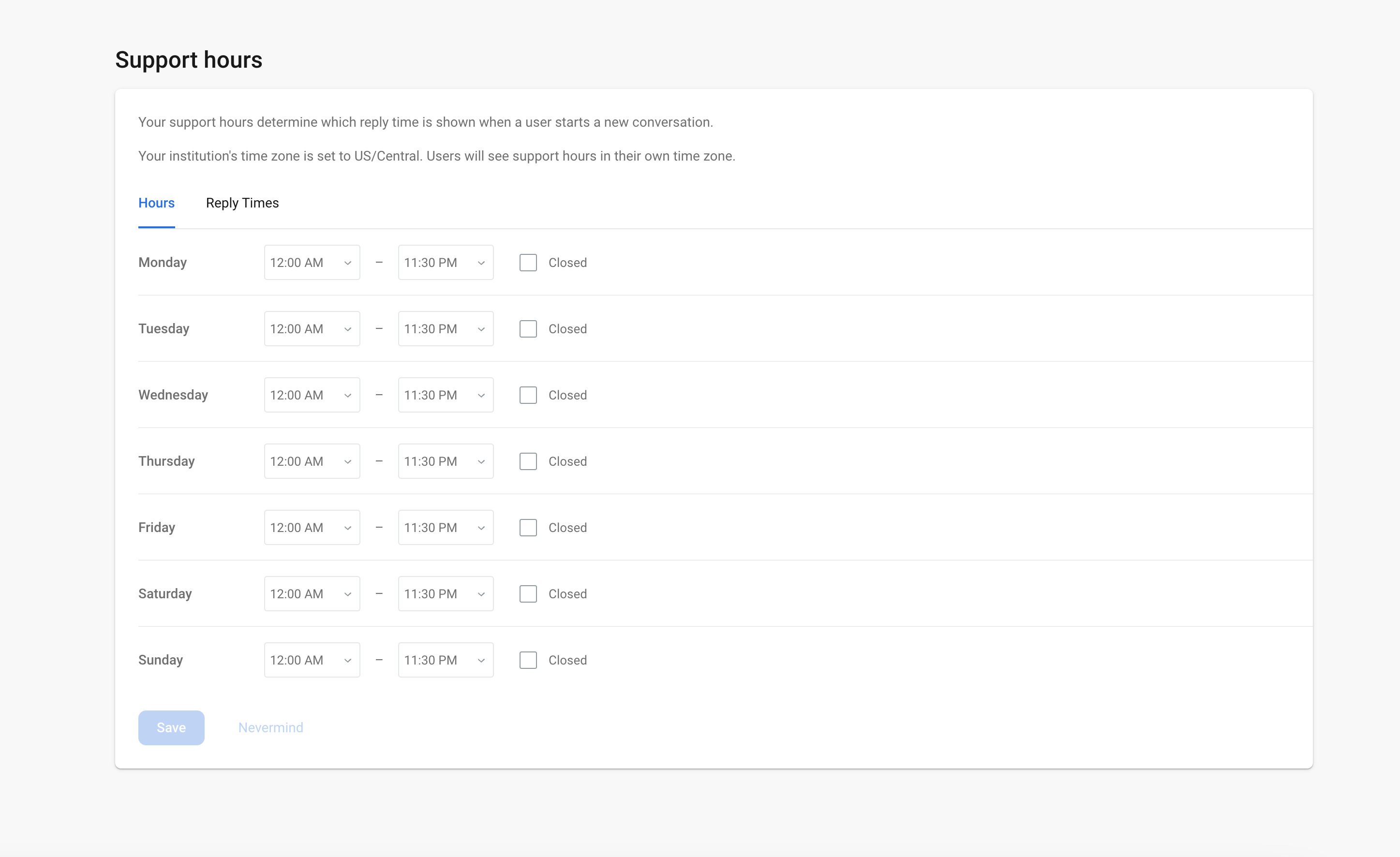
Holiday and Closures
Figure 10 | Holiday and Closures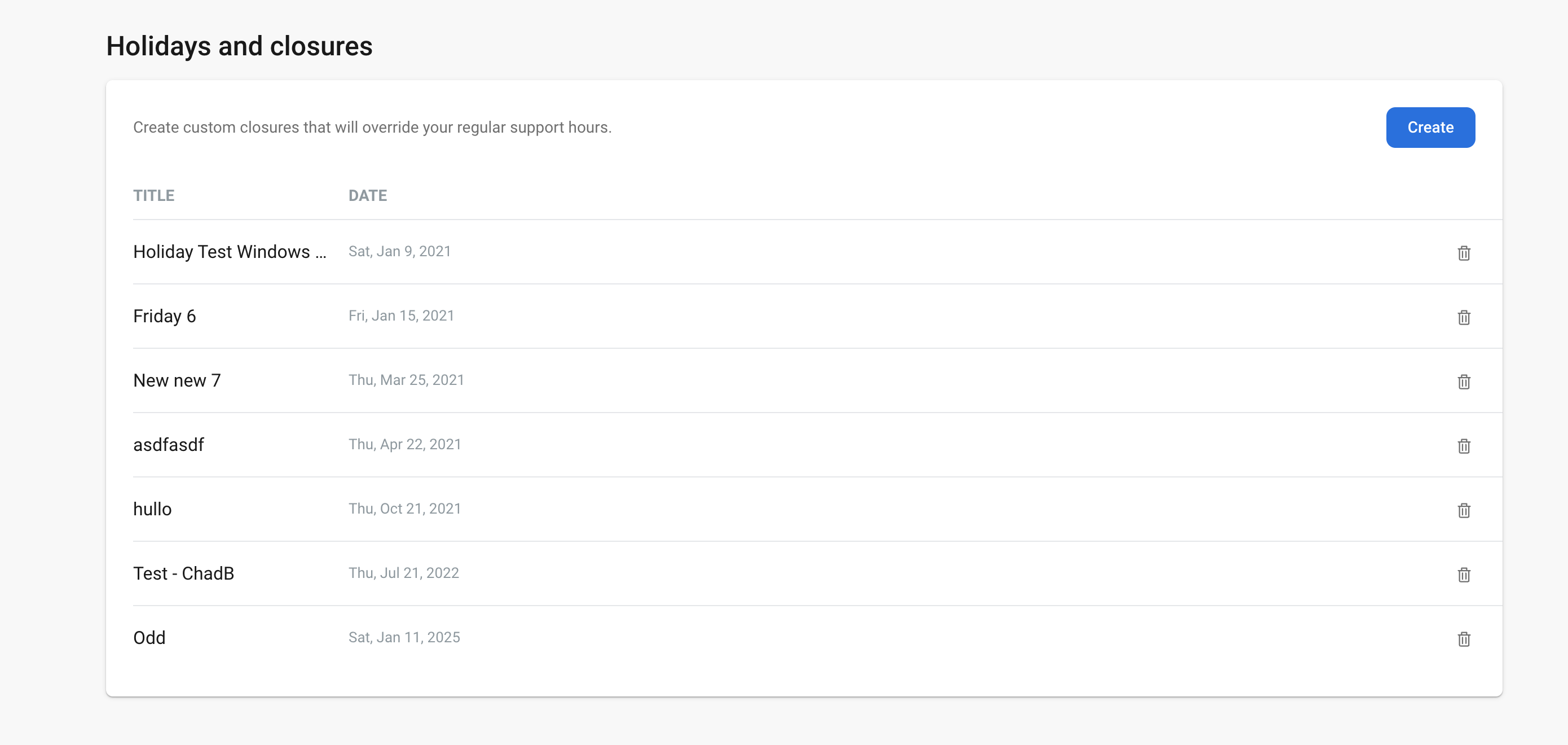
Email Notifications
Figure 11 | Email Notifications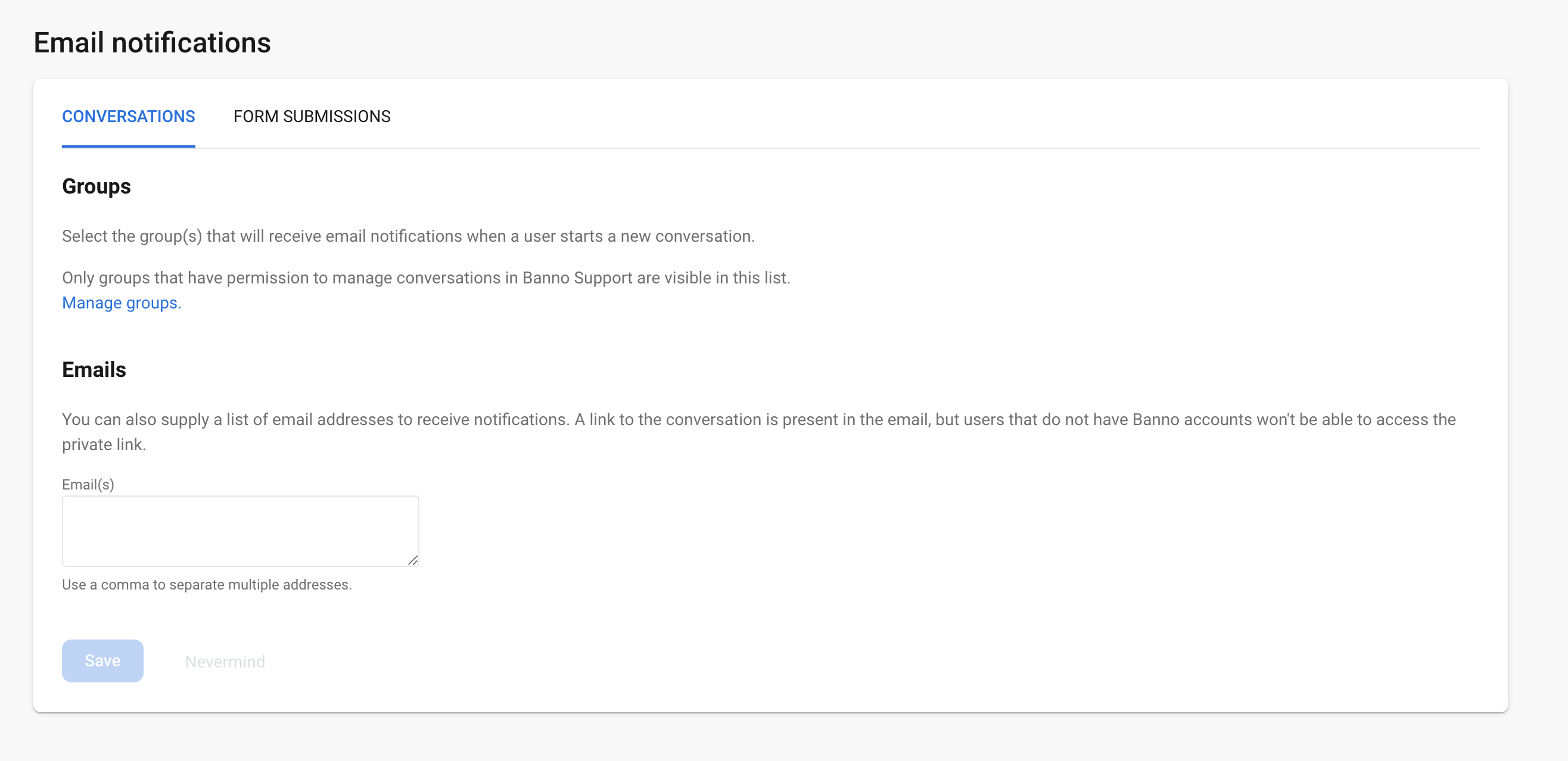
Saved Replies
Figure 12 | Saved Replies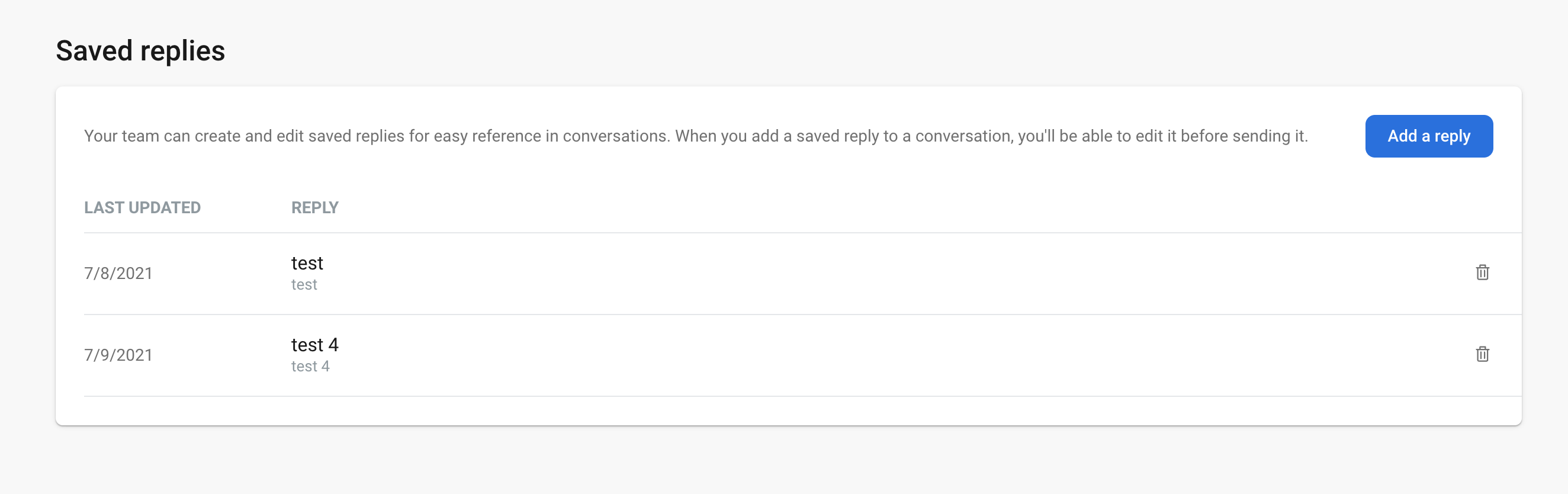
Rule Management
Figure 13 | Rule Management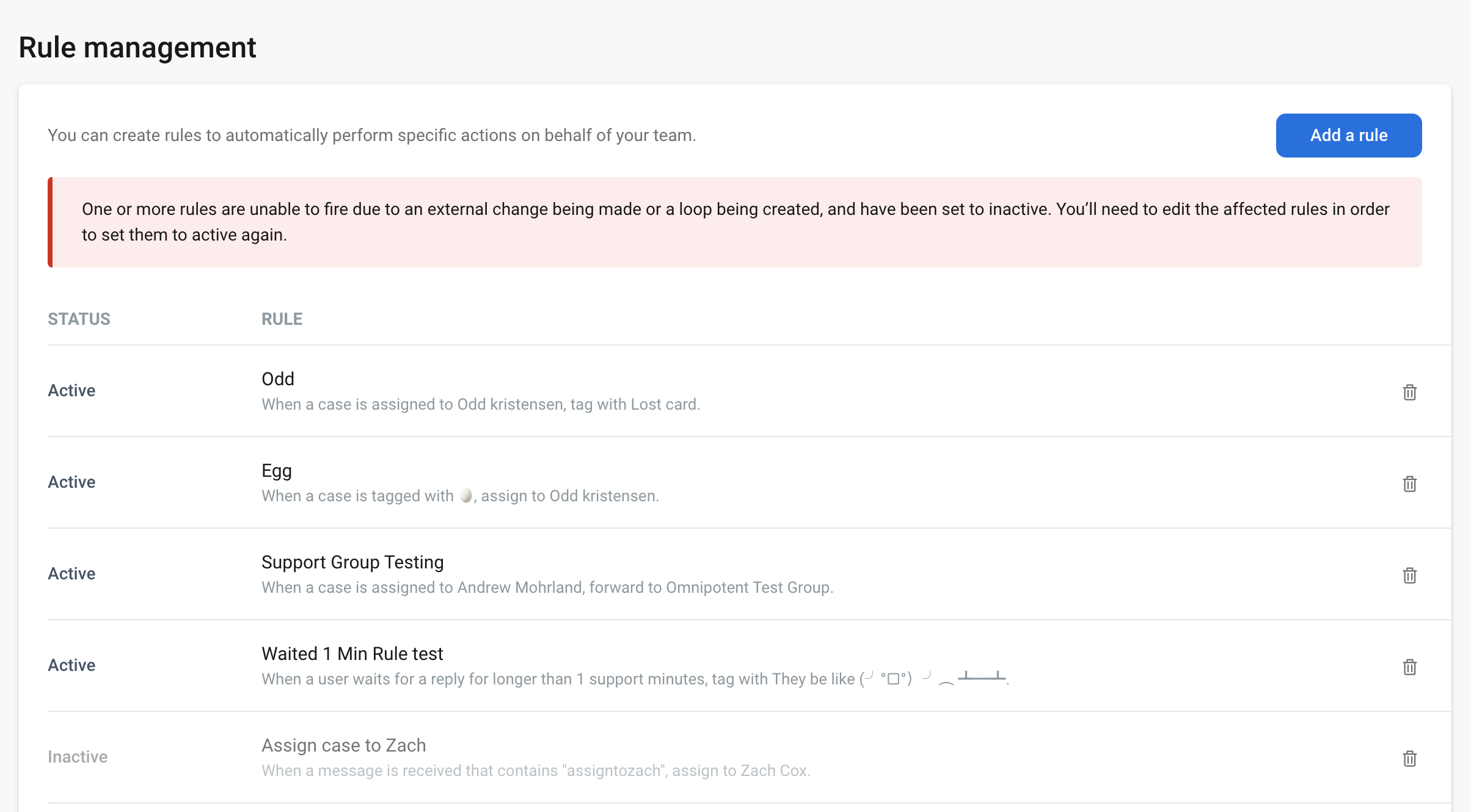
Tags
Figure 14 | Tags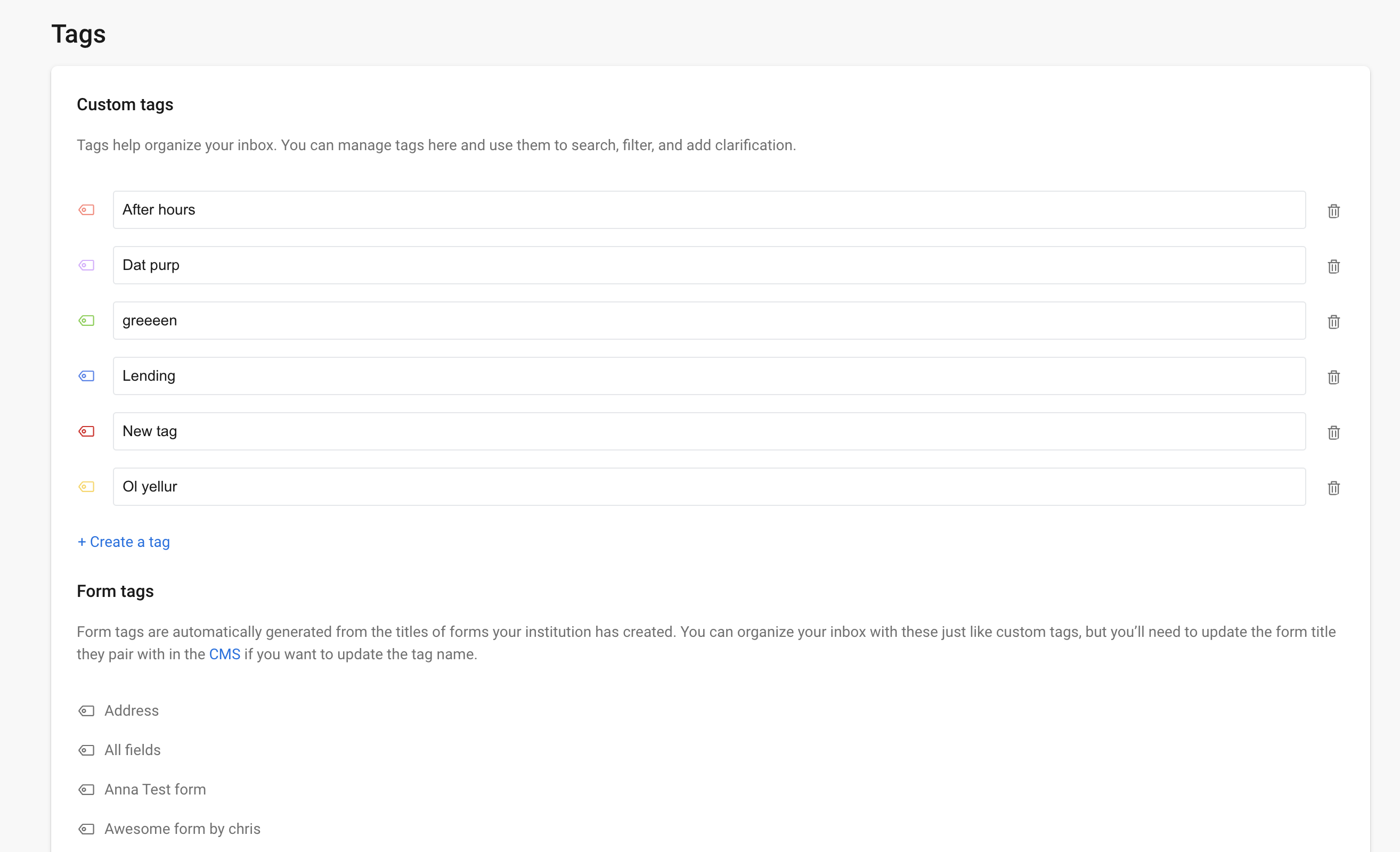
Conversations Pop-out Figures
Pop-out Case List
Figure 15 | Pop-out-case-list